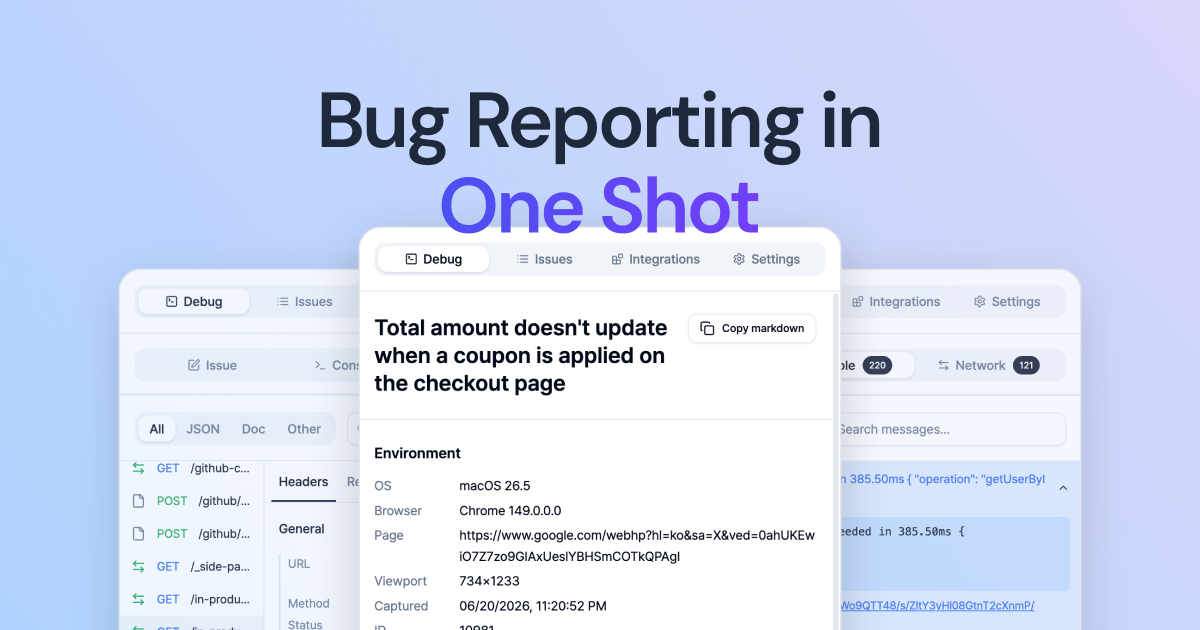
Bug Reports in One Shot.

Bug Reports in One Shot.
Discover, fix, capture, and report bugs — all with BugShot.
Google ChromeAdd to ChromeNo sign-up required. Just install and go.
Product preview


Inspect & EditCapture & AnnotateRecord & ReplayLive LogsAI ReportLog Viewer
Click any element to view its applied styles and attributes.
Stop explaining bugs in words
Inspect & Edit
Click any element to view its styles, then tweak them live in the visual editor.
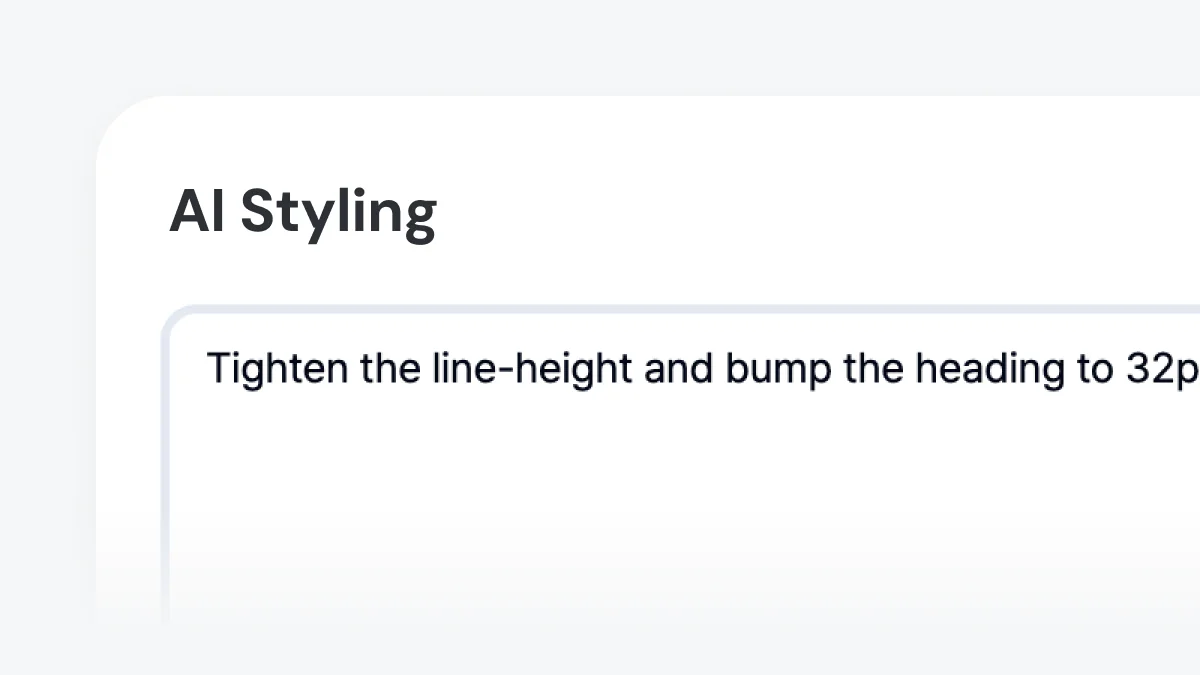
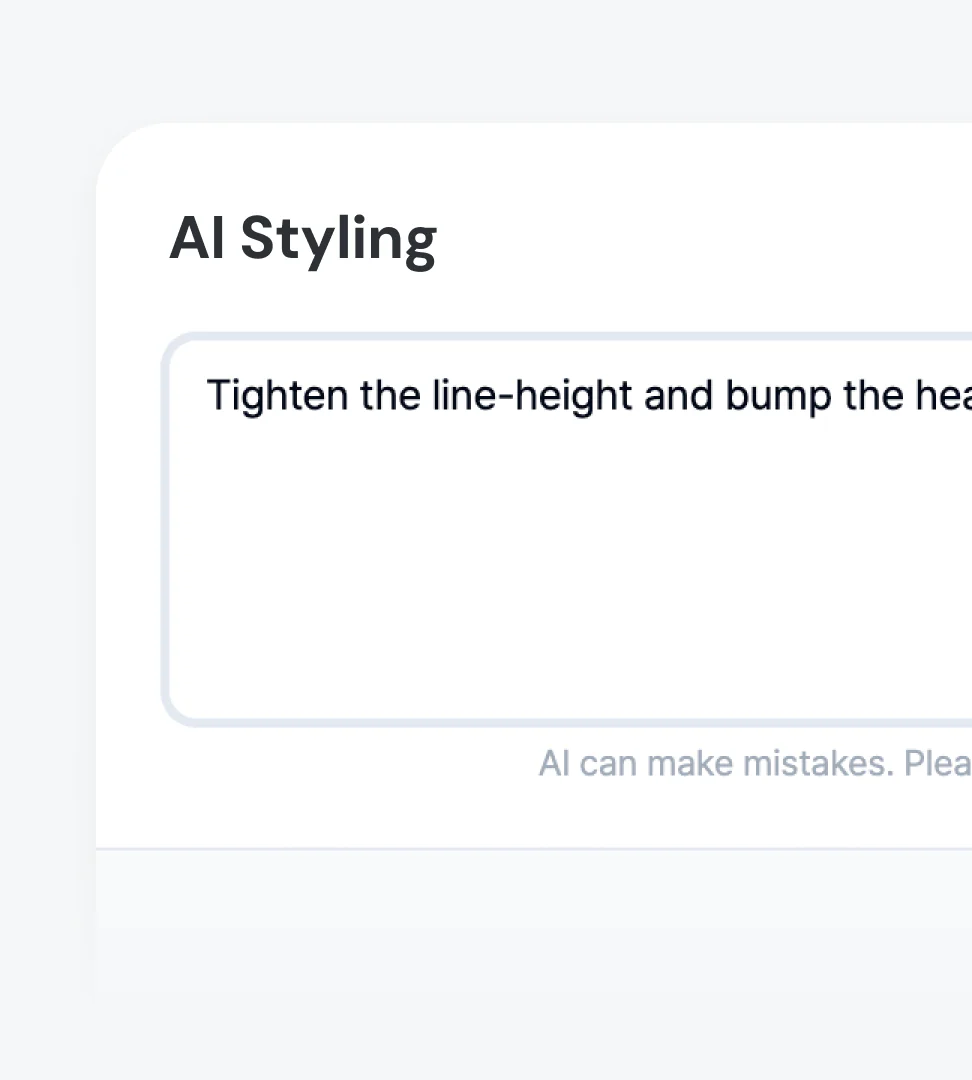
AI Styling
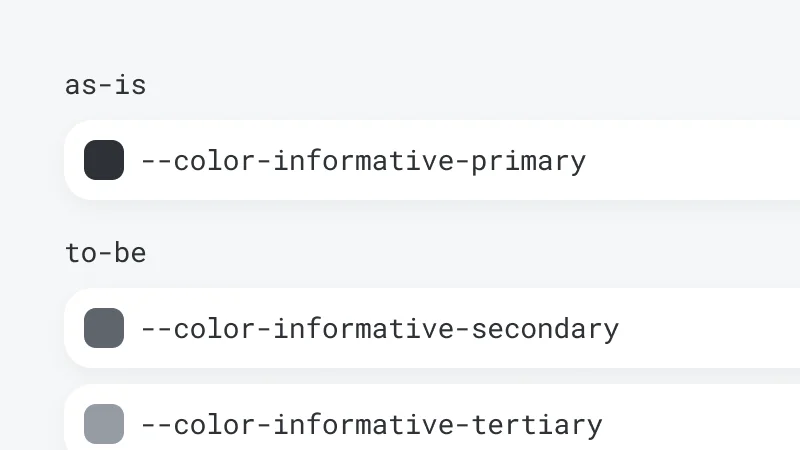
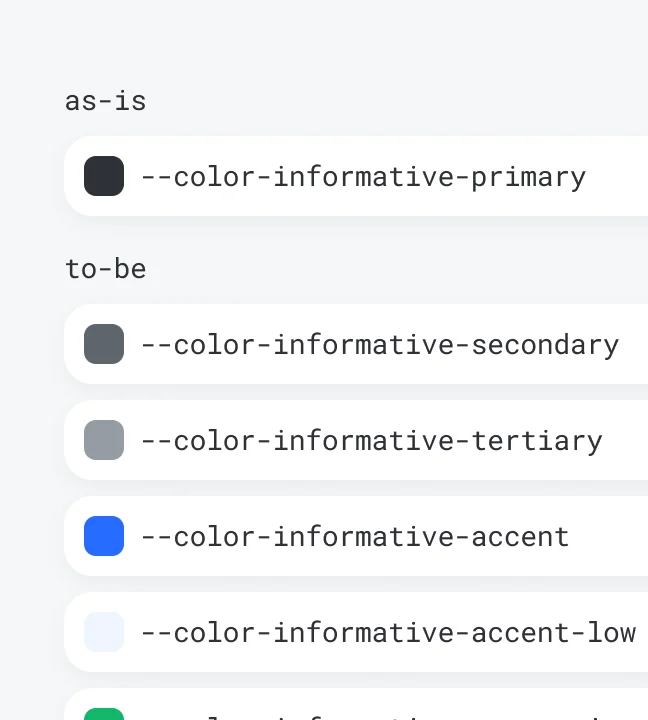
Describe the change in plain language and AI rewrites the CSS — compare before and after right on the page.
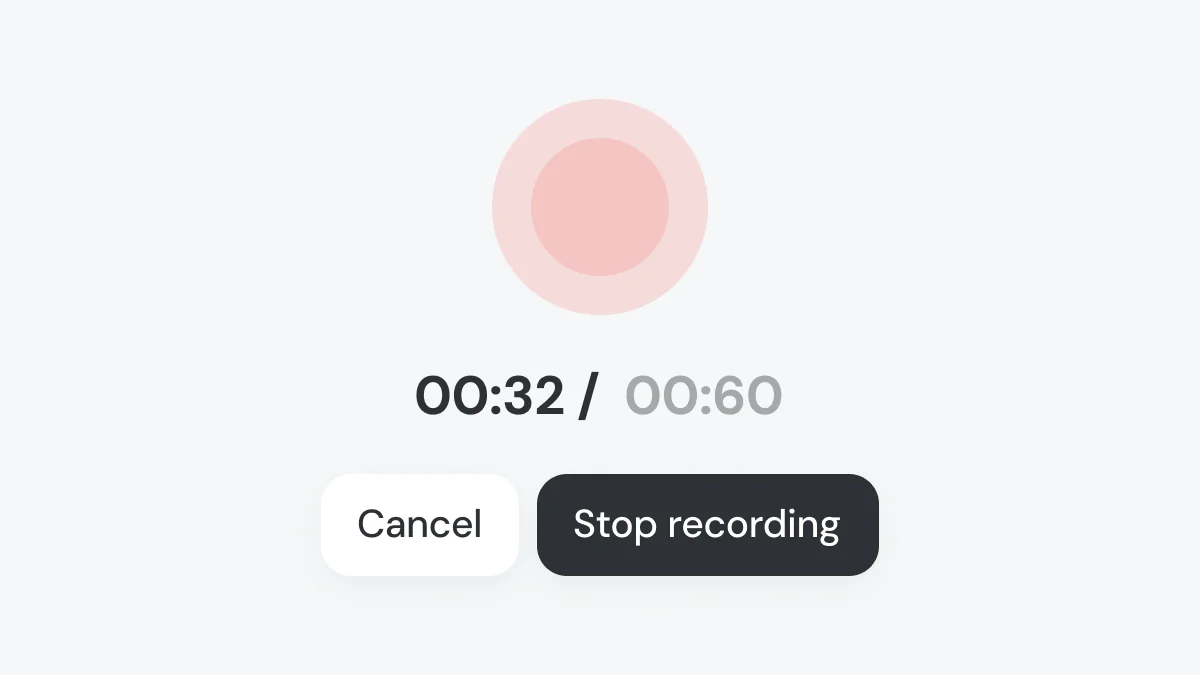
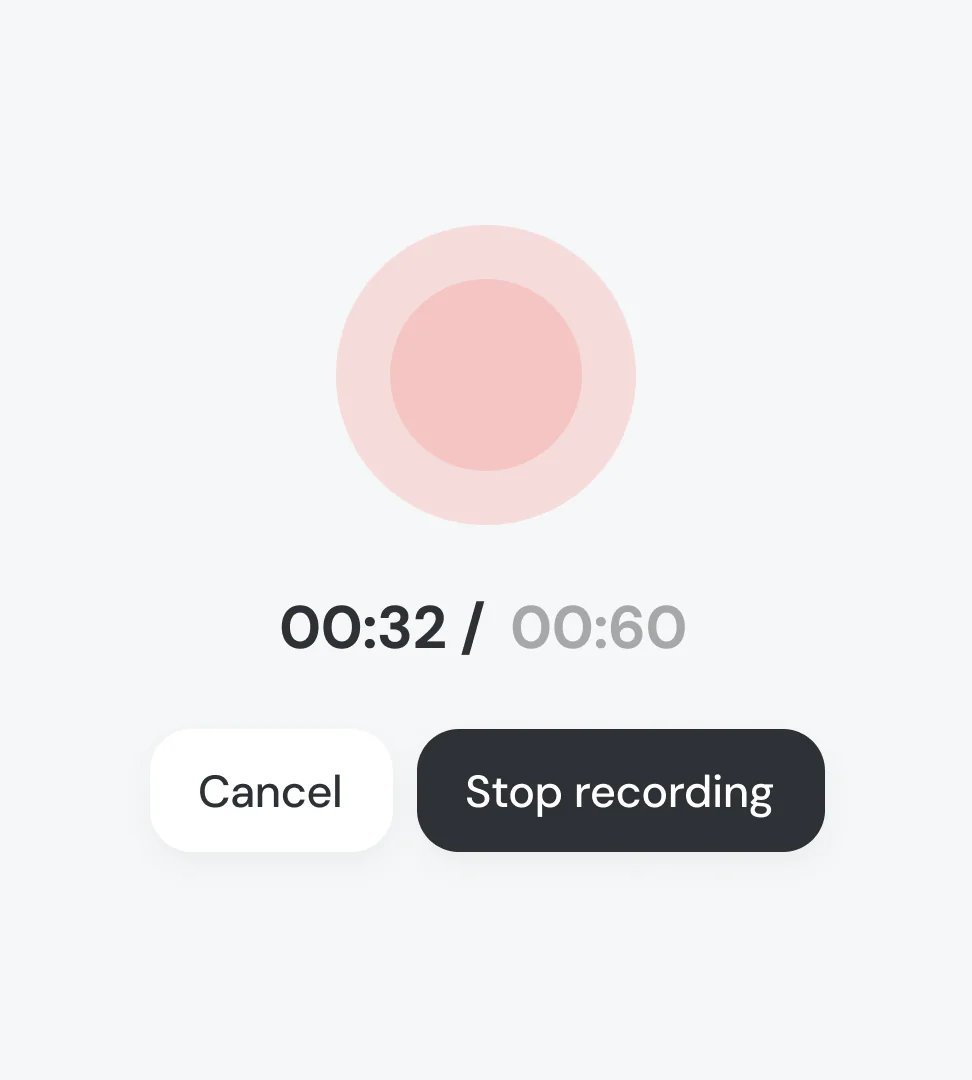
Record & Replay
Record live, or grab the last 30 seconds from the always-on replay — catch the bug even after spotting it.
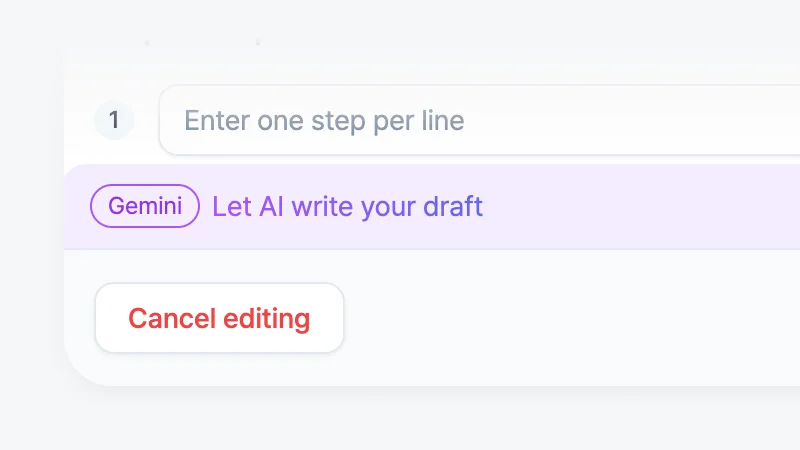
AI Report
Turn captured data into a structured report with steps, expected, and actual behavior.
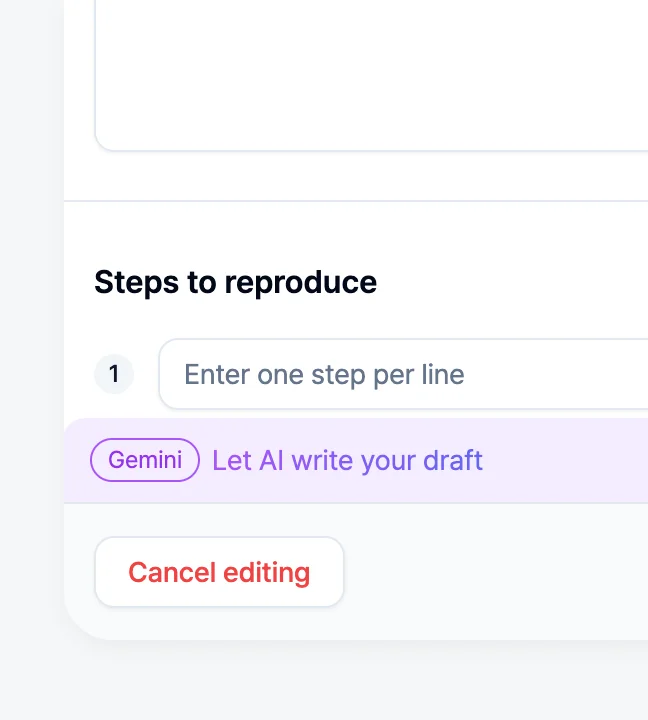
Bug reports developers want
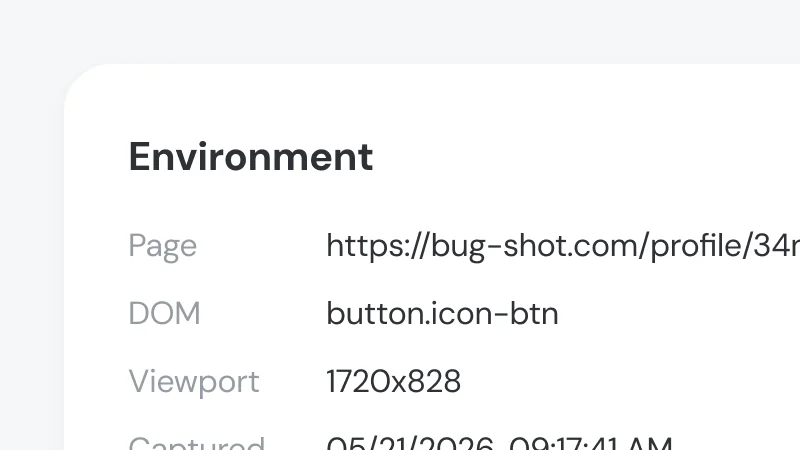
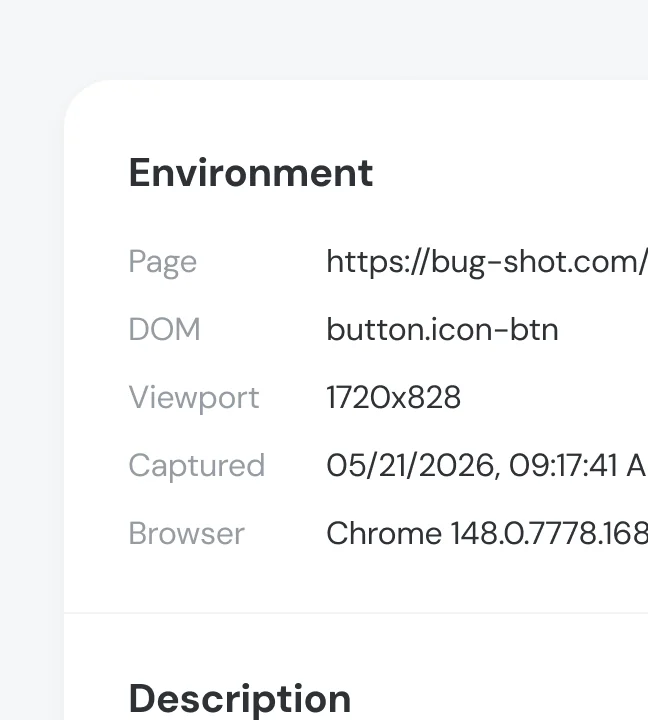
Auto-Collect Context
Browser, resolution, and DOM context come with every report — no more asking the reporter what setup they were on.
One-Click Issue Filing
Submit tickets with full attachments to Jira, GitHub, Linear, Notion, and more in one click.


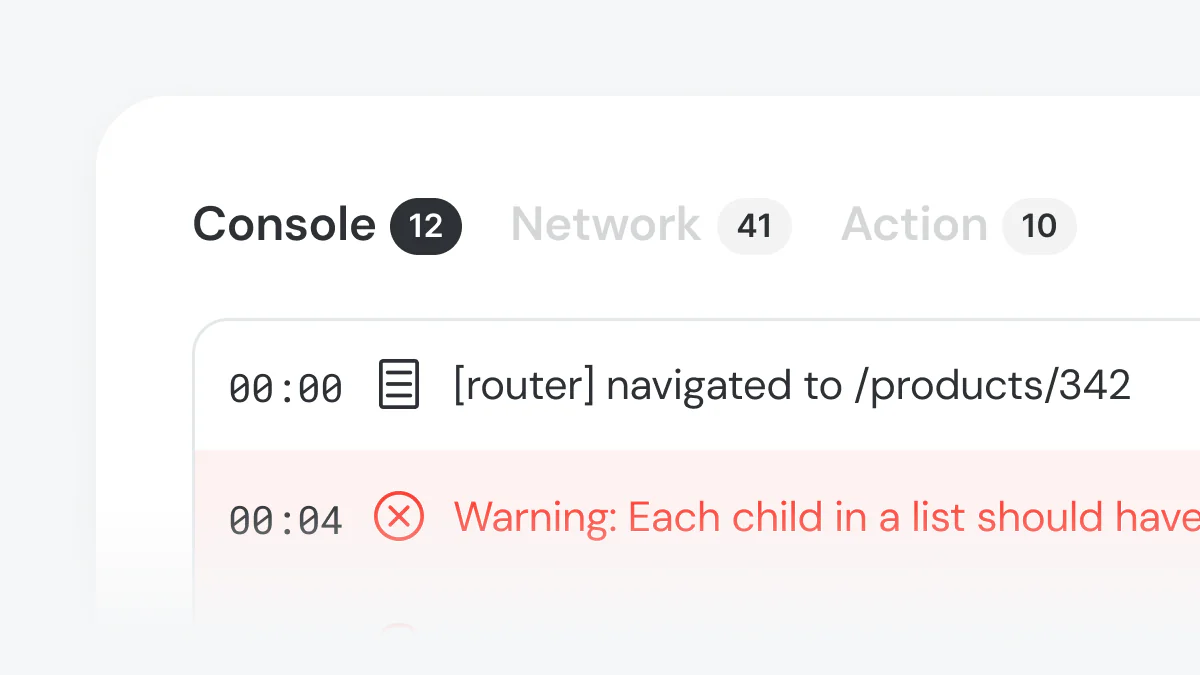
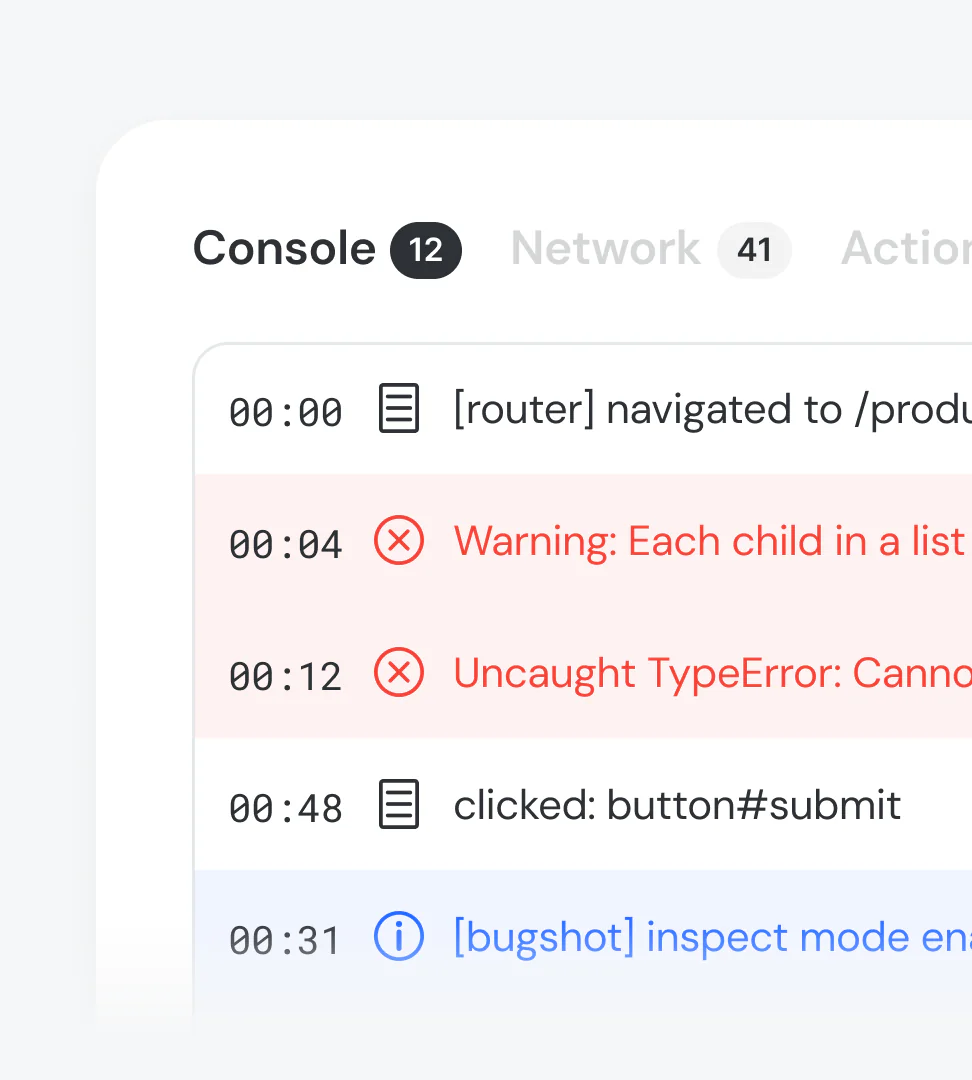
Log Viewer
Open the attached log viewer and the video plays in sync with console, network, and action logs.
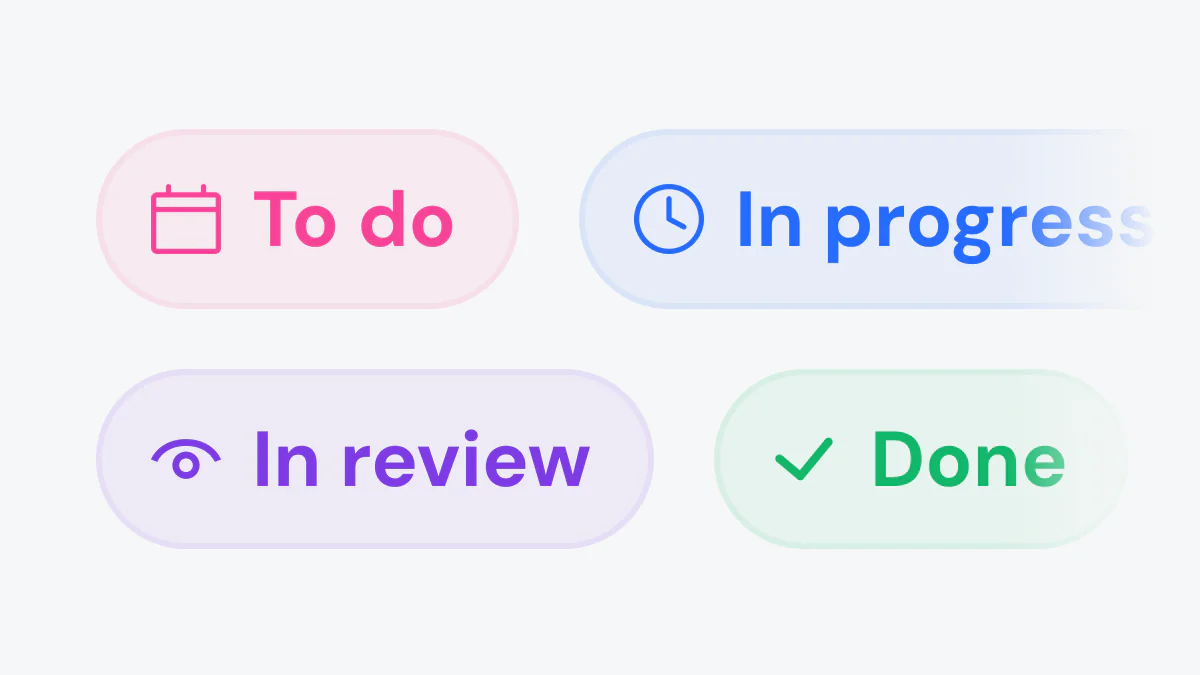
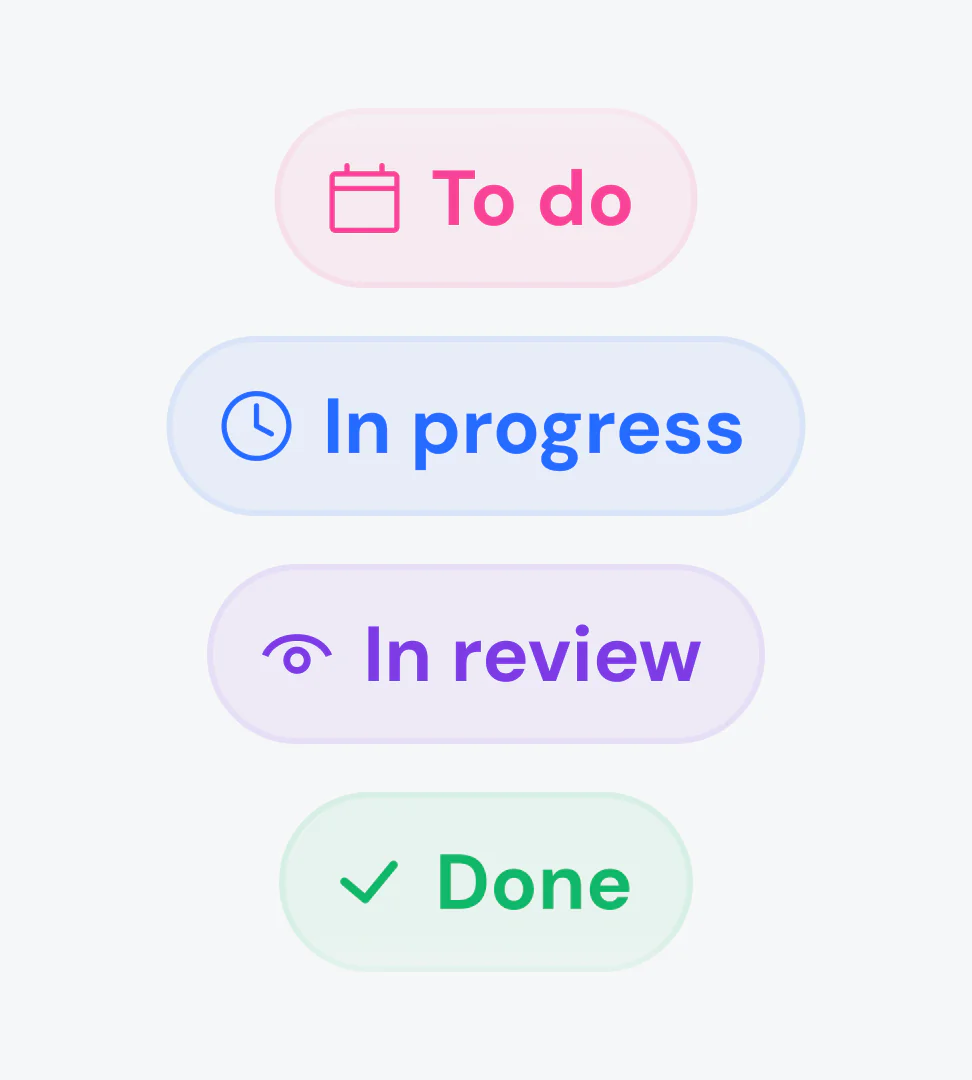
Track Issue Status
Check the status of submitted issues in real time inside BugShot, and update them without opening your tracker.
How to use BugShot
1. Connect your tracker
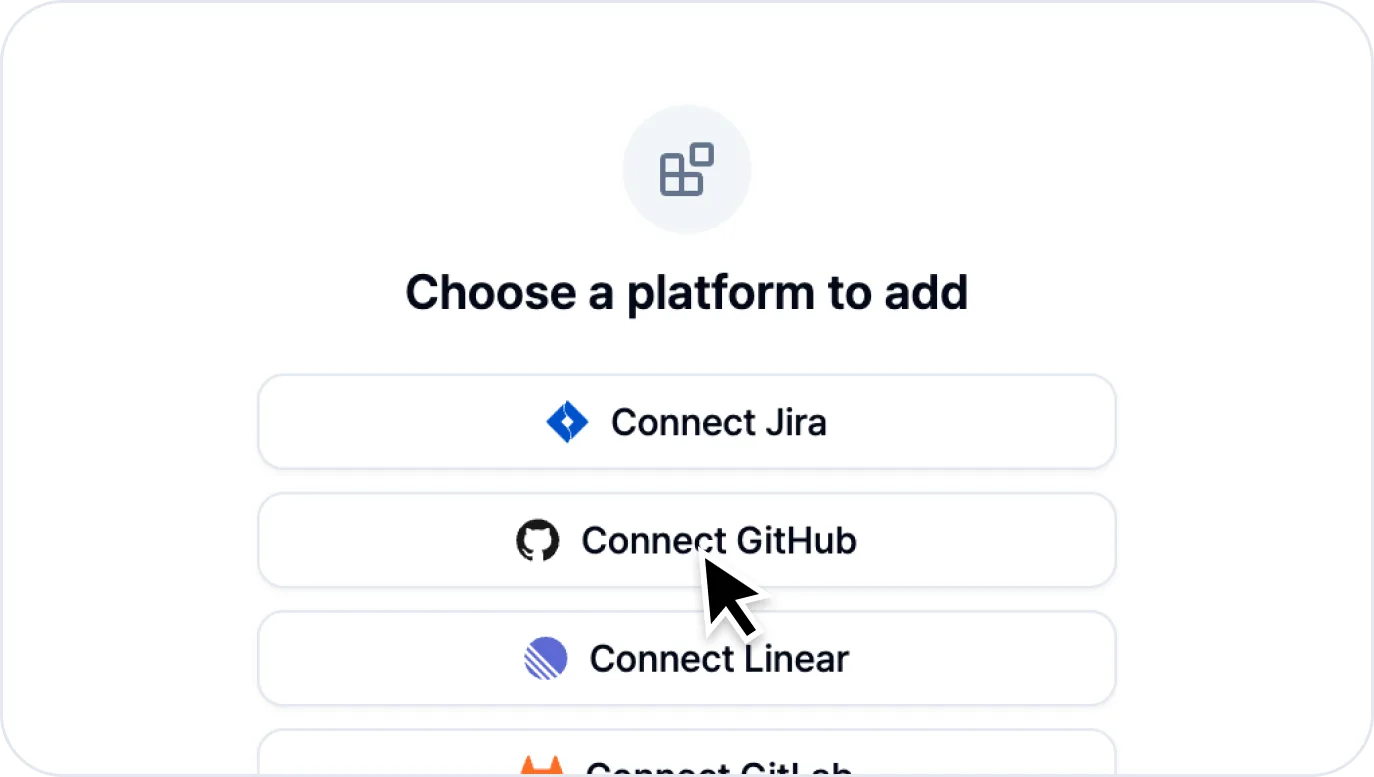 Link Jira, GitHub, Linear, Notion, and more via OAuth or API key. Projects, labels, assignees, and priorities sync automatically — no reconfiguration needed when filing issues. See the Integrations docs for details.
2. Choose a capture mode
3. Edit the styles
4. AI generates a draft
5. Submit your report
6. Check issue status


User reviews
안\\, QA Engineer
“I used to juggle DevTools, screenshots, and Jira separately — now it all happens in the browser without breaking my flow. Replacing text explanations with visual diffs and recordings cut our back-and-forth way down.”
김\\, Product Designer
“During design QA, I used to dig through DevTools to find element positions and capture changes separately. Now I can inspect and share fixes right on the page — the whole process is so much smoother.”
성\\, Backend Engineer
“QA tickets that just say “it doesn’t work” are over. Network requests and console errors come attached automatically, so I see which API broke right away, and the AI drafts the repro steps. Debugging time dropped a lot.”
문\\, Frontend Engineer
“I used to burn time reproducing bugs that came in as a single screenshot. Now one capture bundles console errors, network logs, and environment info automatically, so half the cause is visible the moment it lands.”
Frequently Asked Questions
Is BugShot free?
Yes, completely free with no sign-up required. Install from the Chrome Web Store and start reporting right away.
Which browsers are supported?
What do I need to use the AI feature?
Which issue trackers are supported?
How is collected data handled?
All your Bugs, One Workflow.
From bug discovery to issue submission — all without leaving the browser.