

Design. Animate. Iterate.
Trangram will undergo scheduled maintenance on May 1, 2026, from 2:00 PM to 6:00 PM (AEST)
close
Design. Animate. Iterate.
All in one free vector editor
movie\_edit Create Design video\_library Showcase
Morph shapes
Smoothly transition one shape into another: turn a square into a circle, a star into a heart, or any shapes you can imagine.

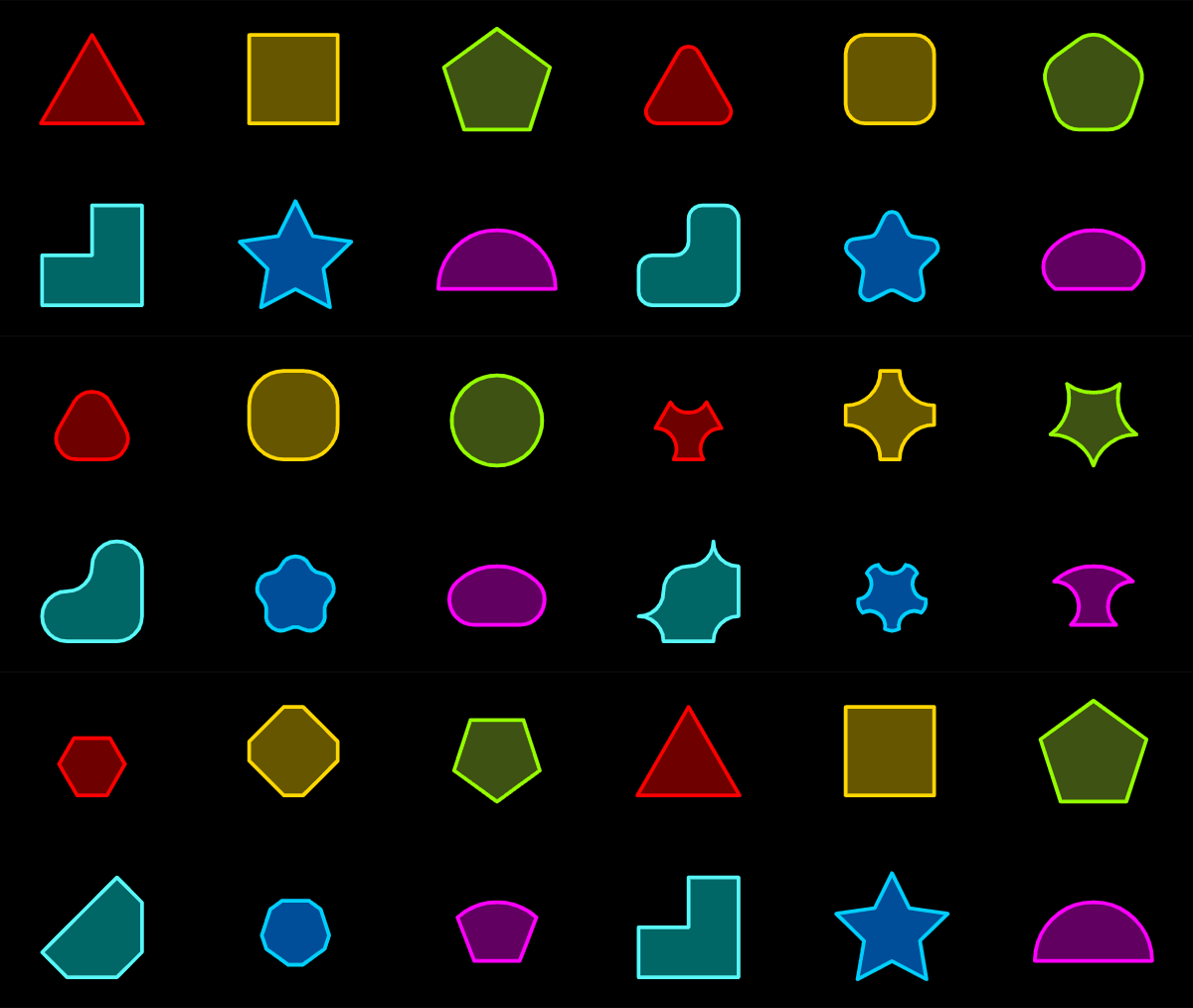
Round corners
Round the corners of any shapes with different styles: Round, Inverted Round, and Chamfer.
Combine shapes
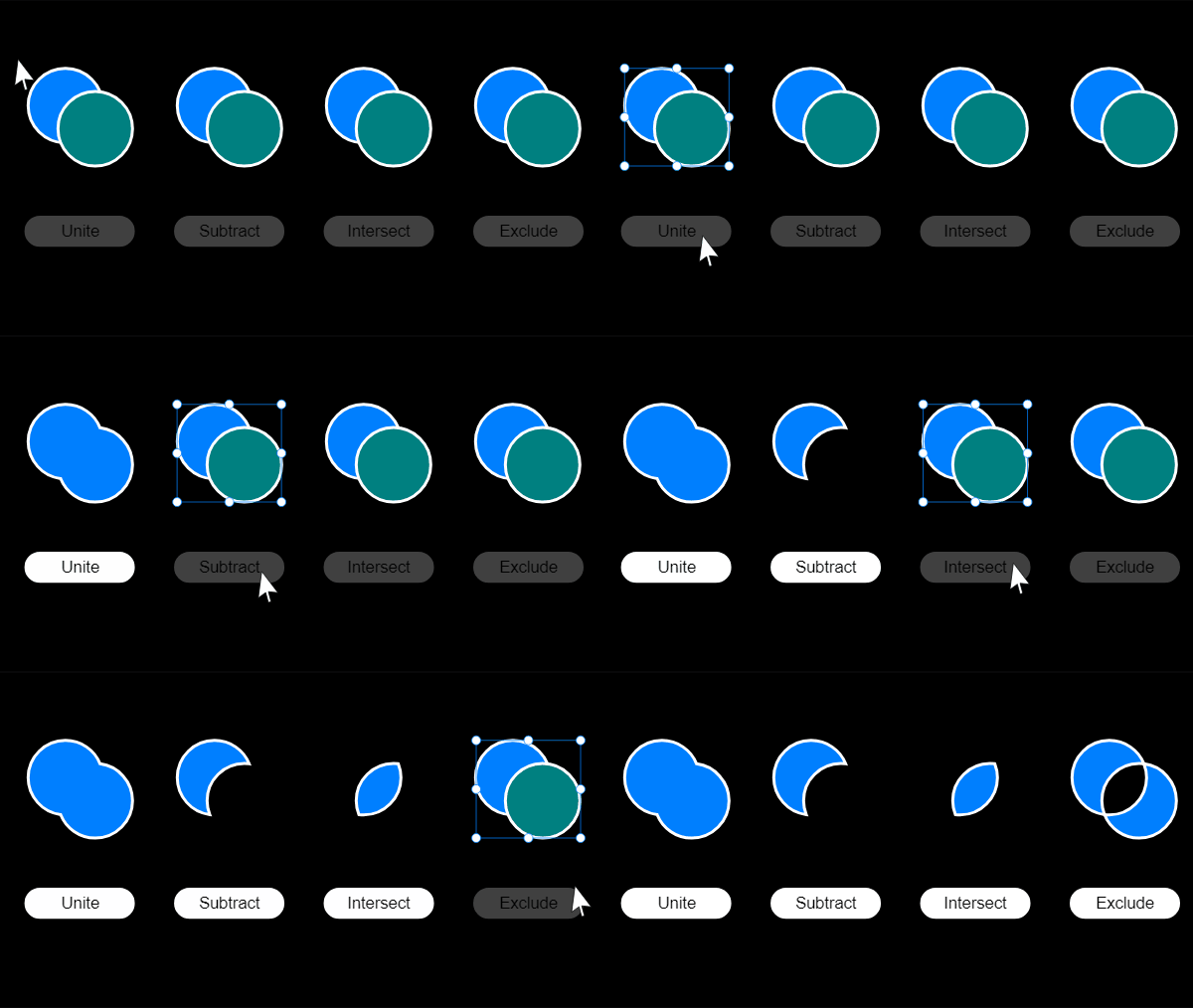
Create new shapes using Boolean Operations by uniting, subtracting, intersecting, and excluding existing shapes.
Trim Path
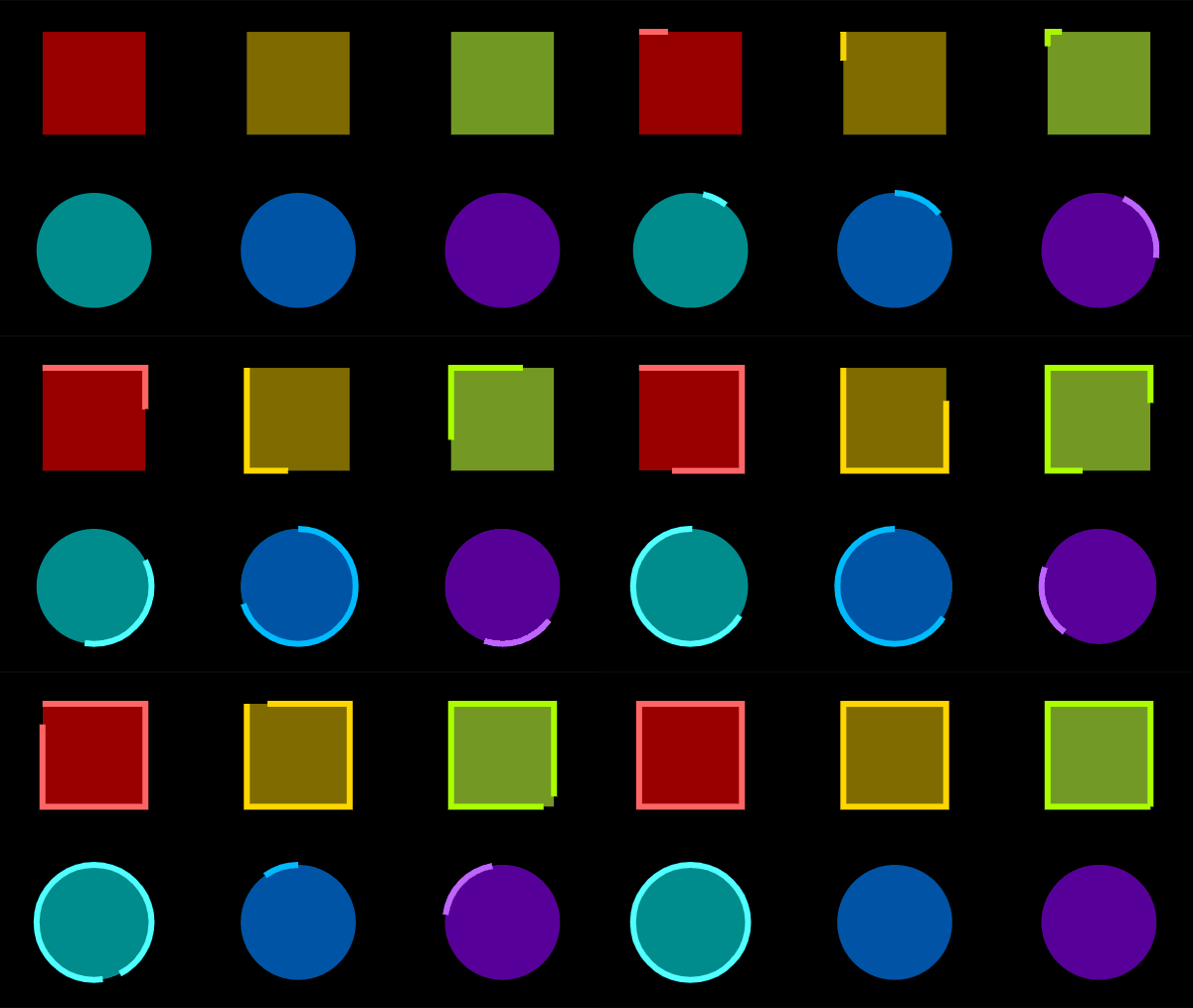
Create self-drawing animations using trim paths. This feature allows you to gradually erase or reveal parts of a line, making it appear or disappear smoothly.
Motion Path
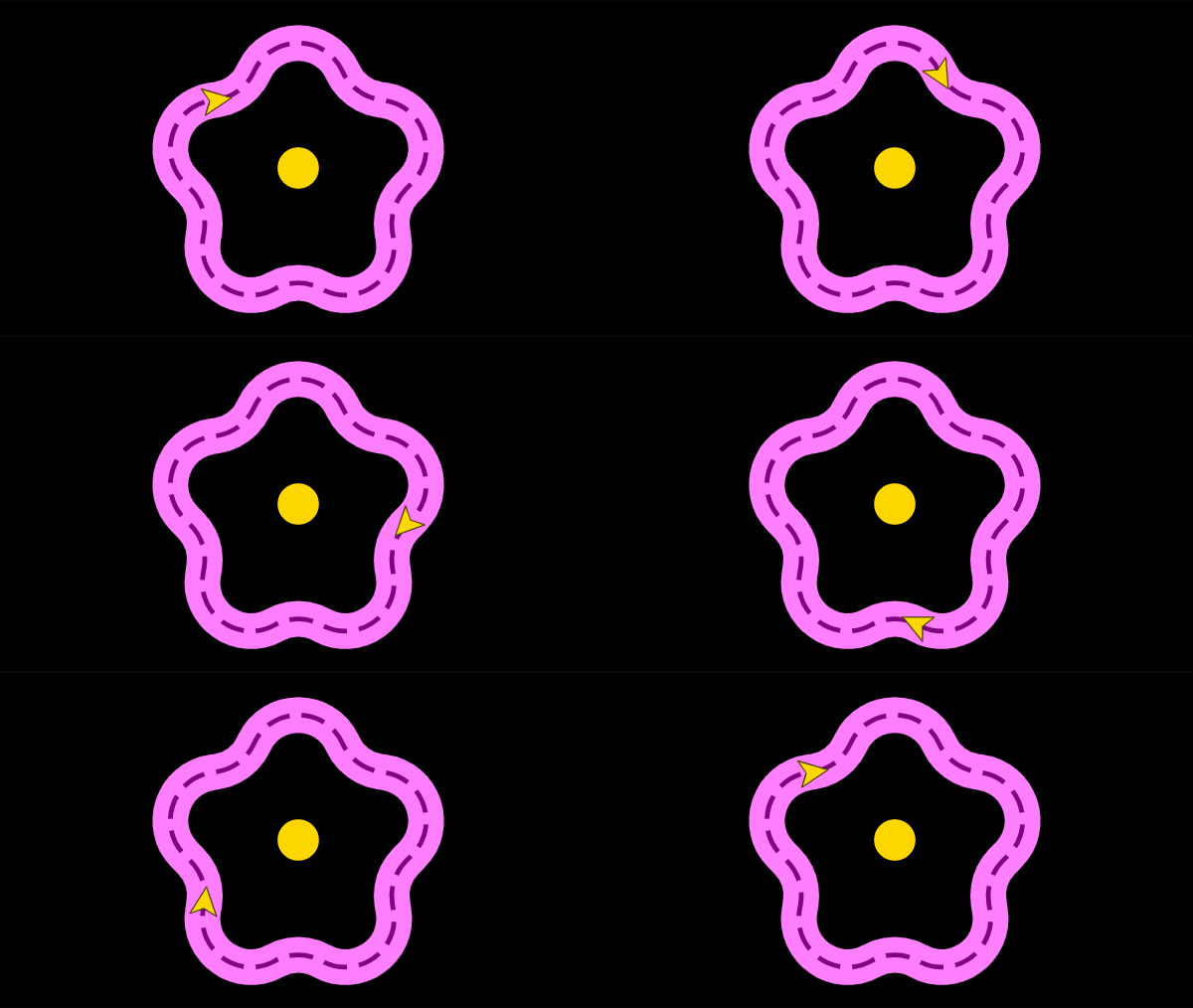
A motion path acts like a guiding track for objects. It helps them move smoothly from one place to another, following a specific path, much like a car moving along a road.
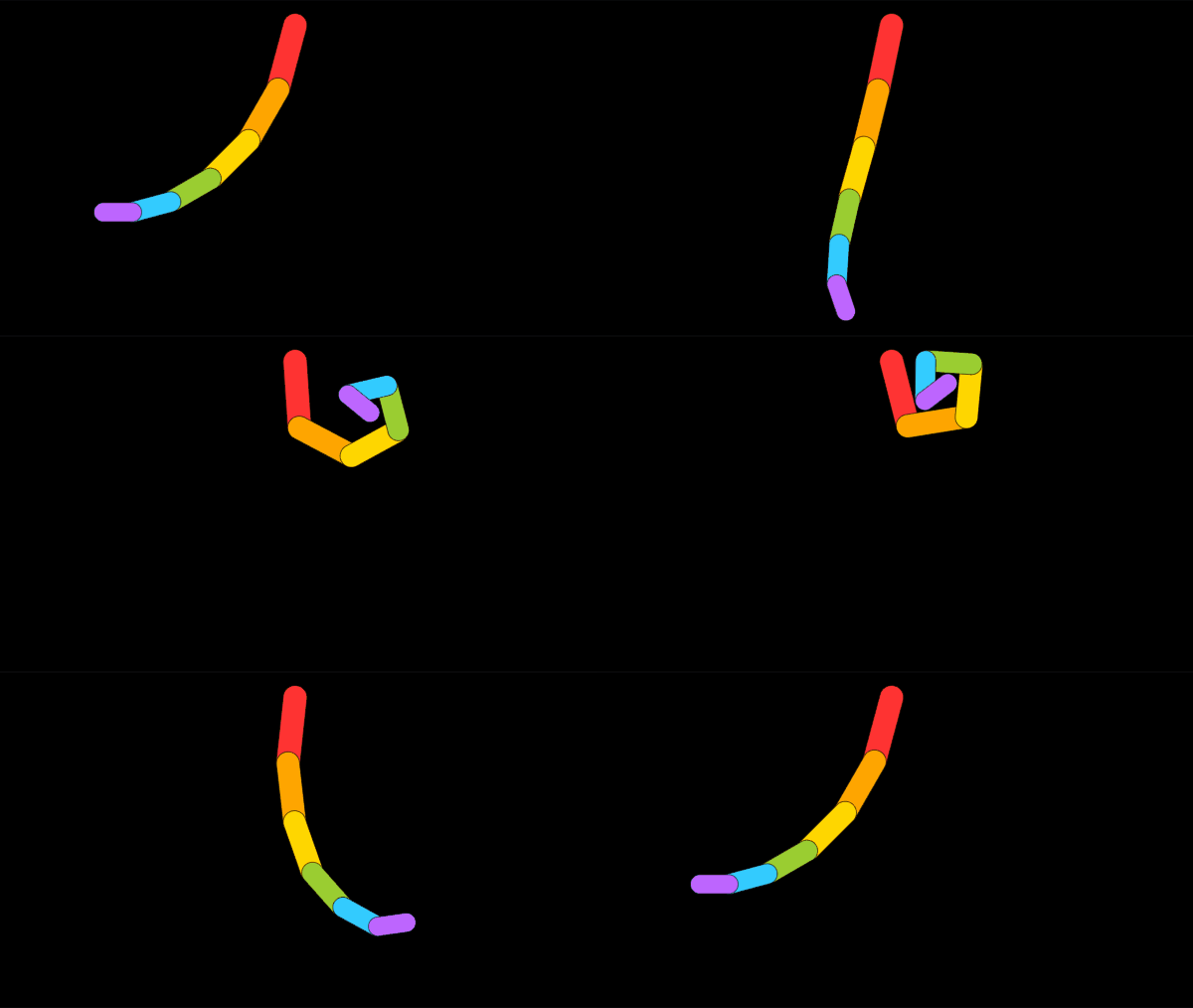
Parent Link
By linking objects with parent links, any movements or transforms made to the parent object will cause the child objects to follow or respond in a coordinated way.
Looping
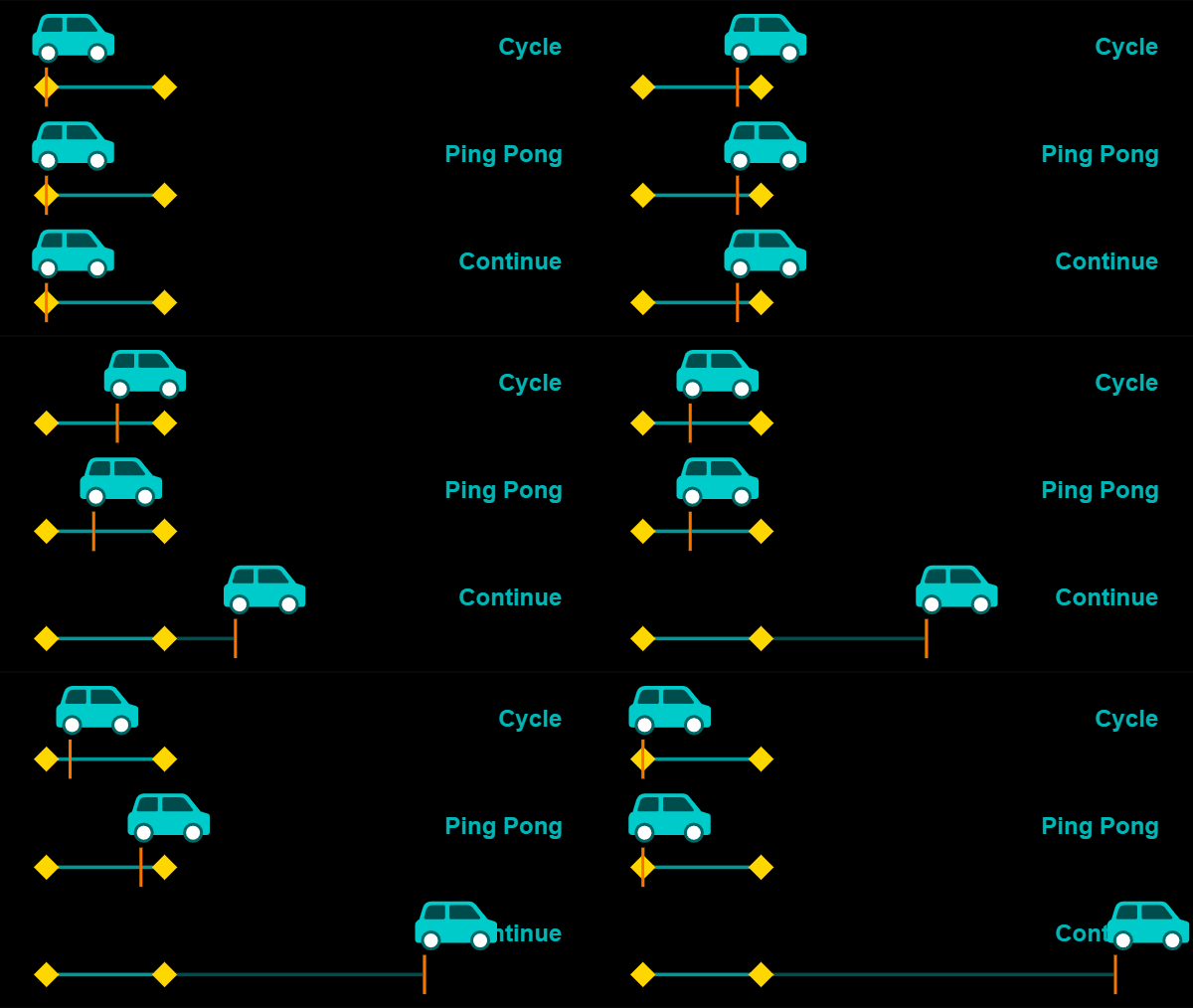
Looping helps you control how your animations repeat, whether in a simple loop, a back-and-forth pattern, or a continuous sequence:
- Cycle: Replays from the start once it reaches the end.
- Ping Pong: Plays forward, then reverses, and repeats, creating a back-and-forth effect.
- Continue: Finishes the current cycle and then continues from where it left off.
Easing
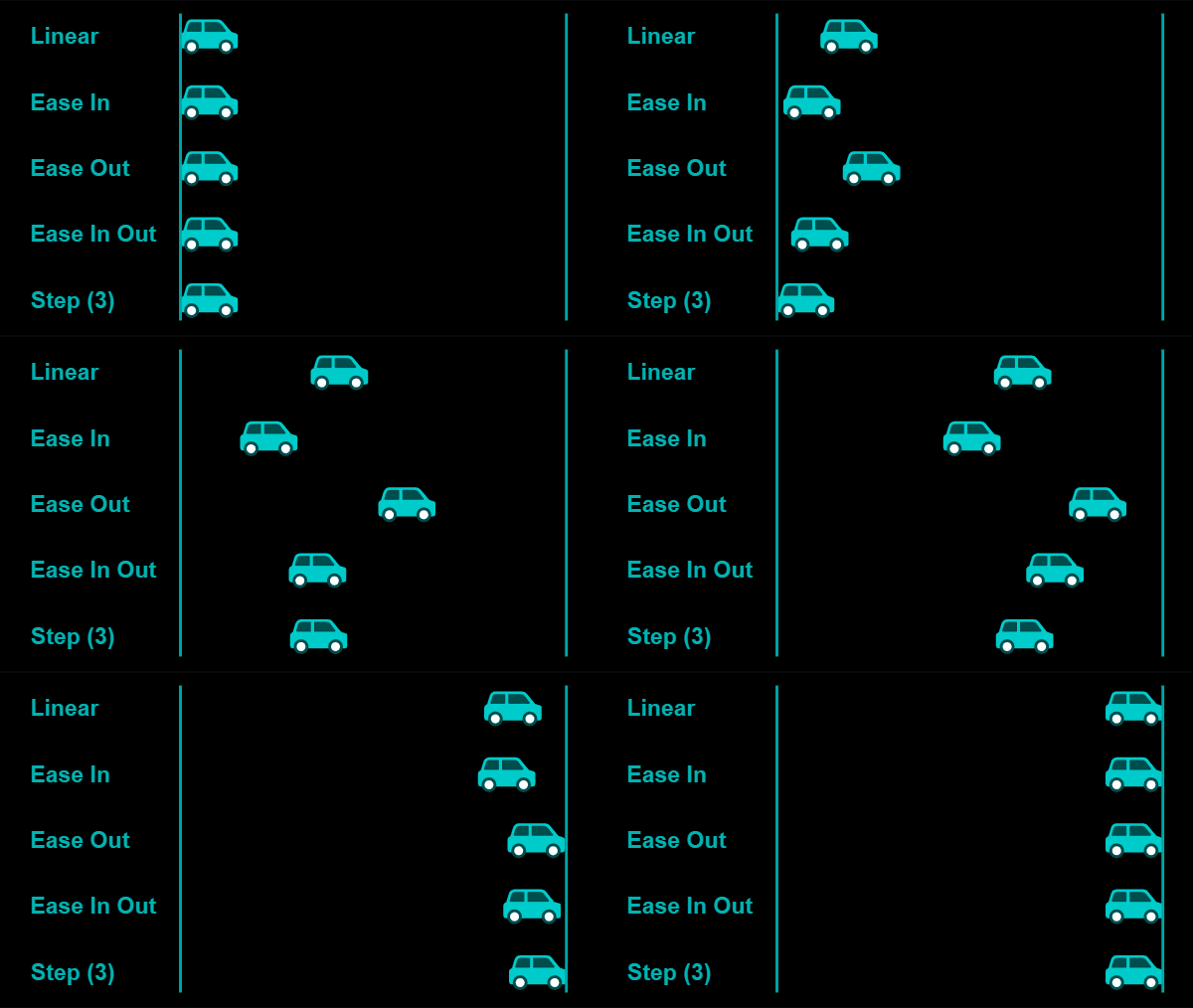
Easing functions control how animations move. They can make movements smooth, speed up quickly, or slow down gently. Options include Ease In, Ease Out, Ease In Out, and Step Functions.
Clipping Mask
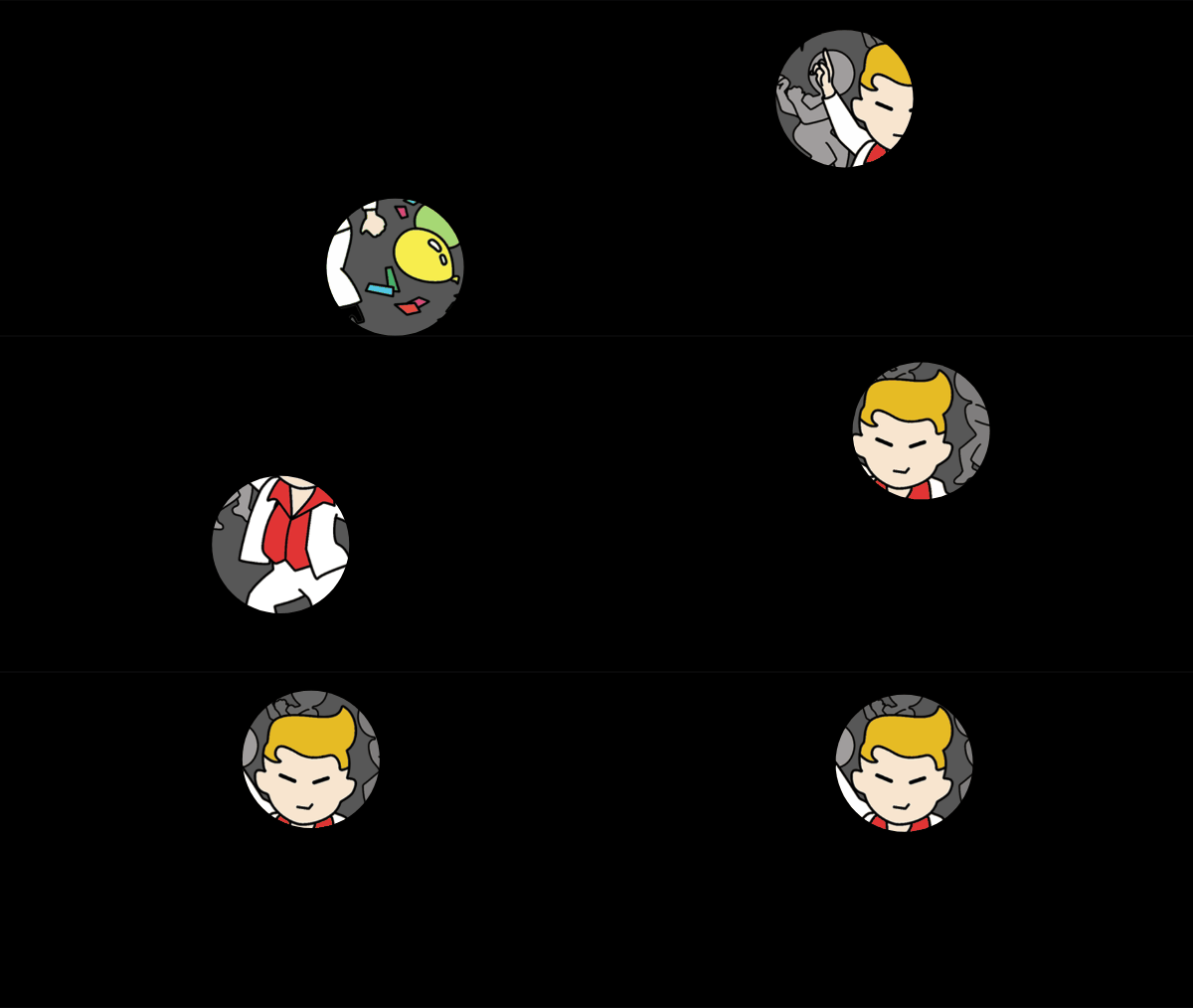
A clipping mask works like a stencil, revealing only a specific part of an image or object while hiding the rest. It's like placing a cutout over a photo to show only what's inside the cutout shape.
Number Animation
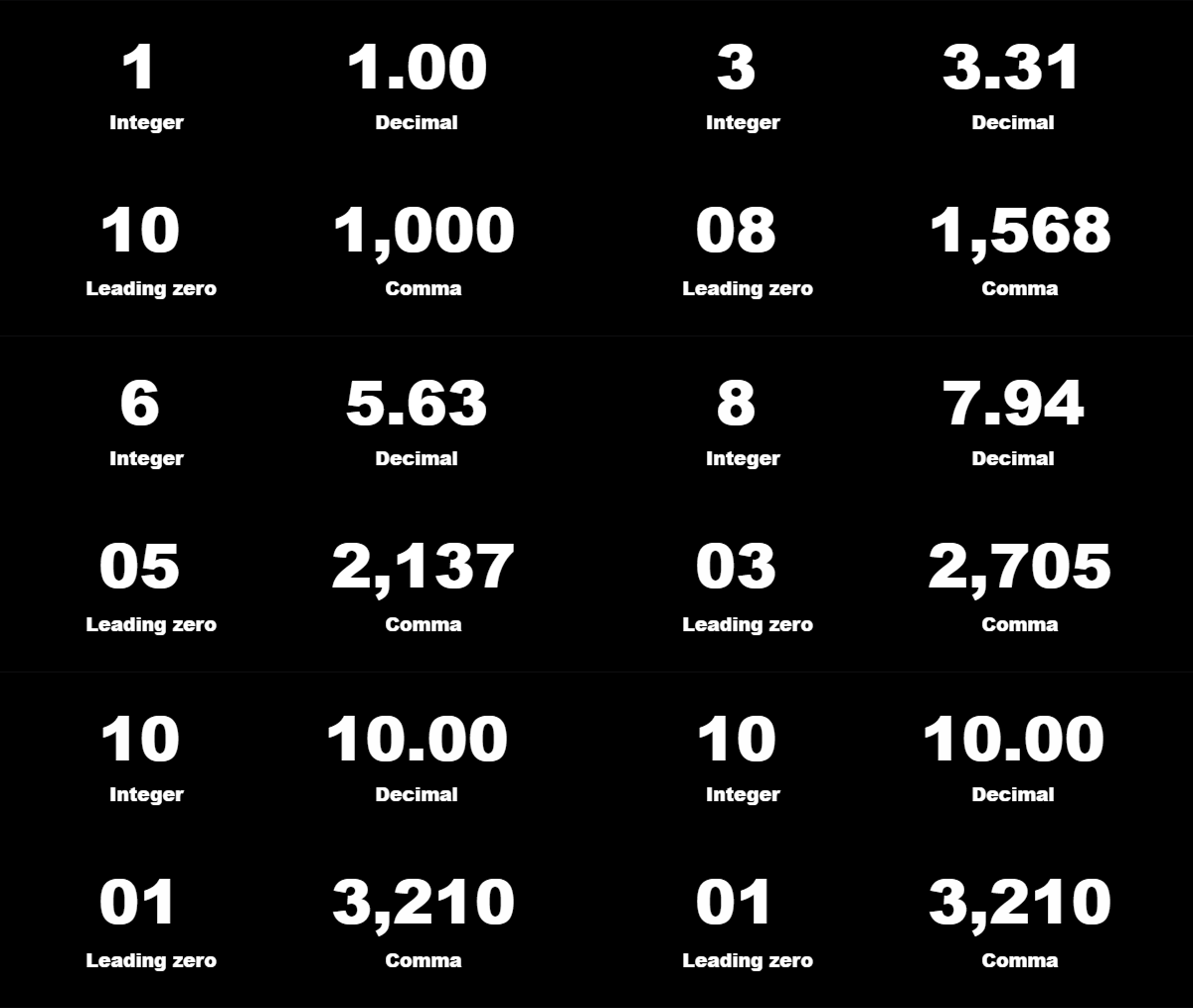
Animating numbers in Trangram is as simple as creating text. Just specify your start and end numbers, along with your desired formats, such as commas, decimals, or leading zeros.
Group Animation
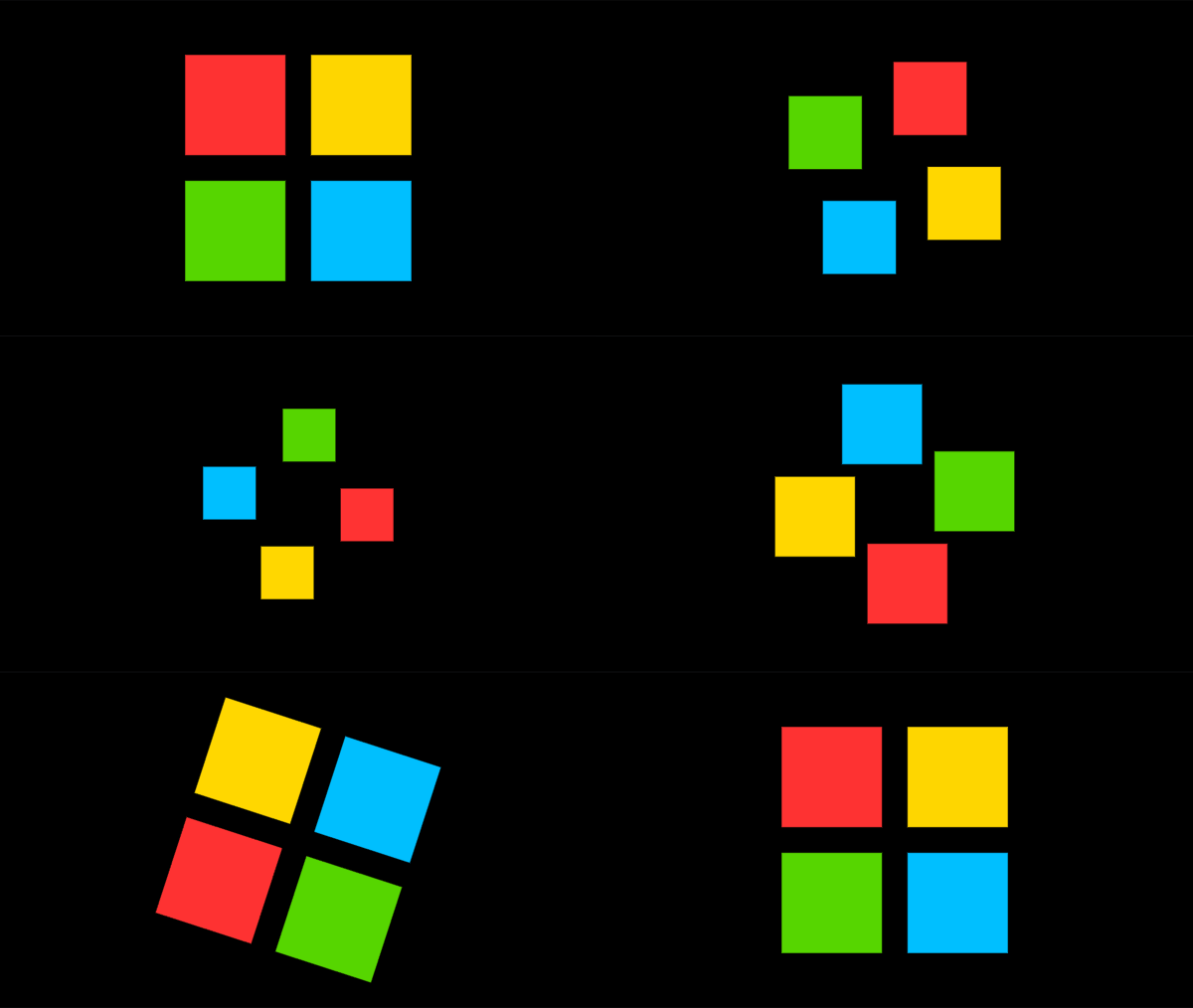
Groups help you organize objects and animate them together. Nested groups are especially handy for animating various transformations, each with its own loop and easing functions.
Import & Export
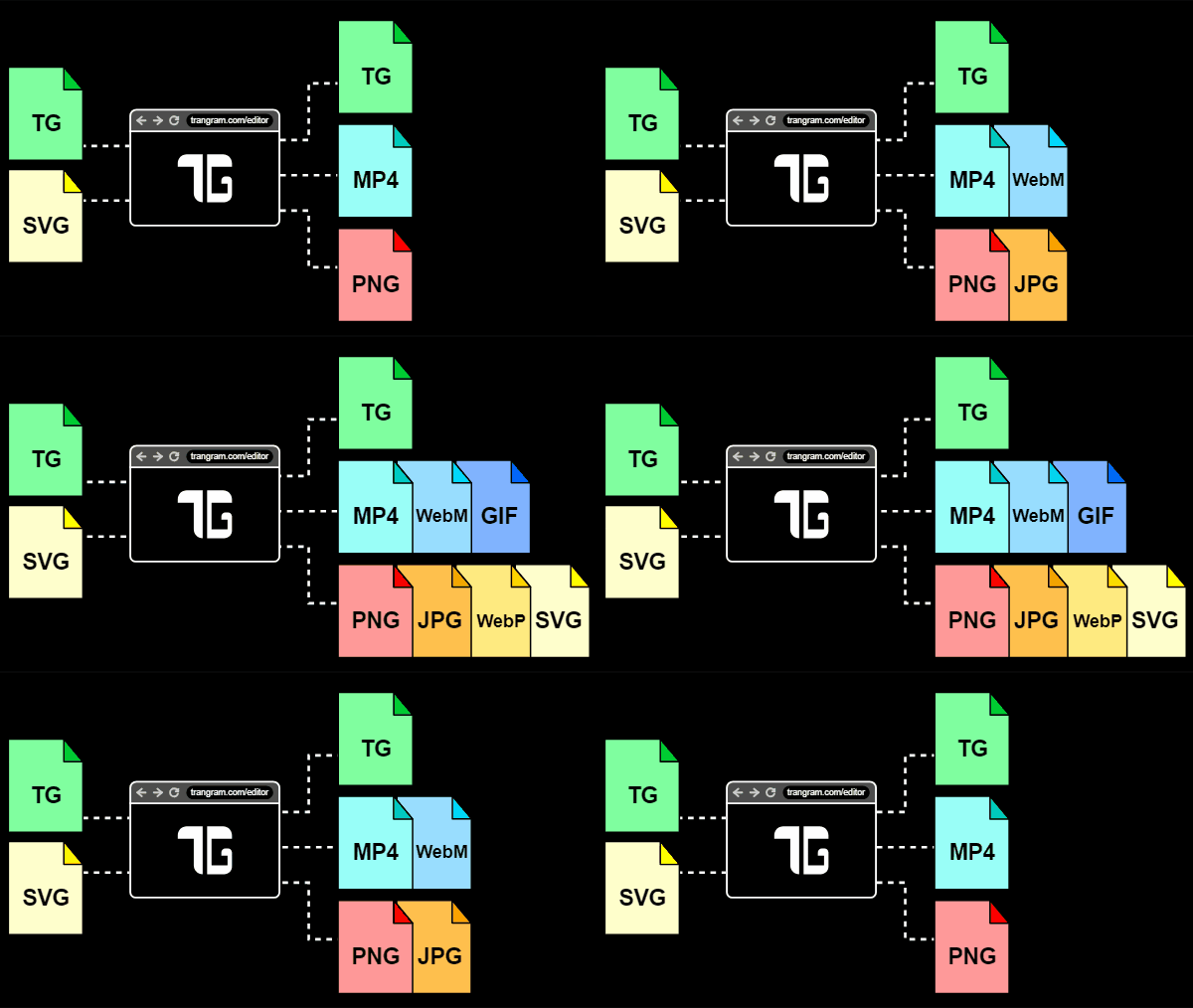
Trangram supports the import of basic SVG and TG (project) files. You can save your projects to your local machine by exporting them in various formats, such as TG files, videos (MP4, WebM), GIFs, and images (PNG, JPG, WebP, SVG).
All animations on this website are created using Trangram 💖


