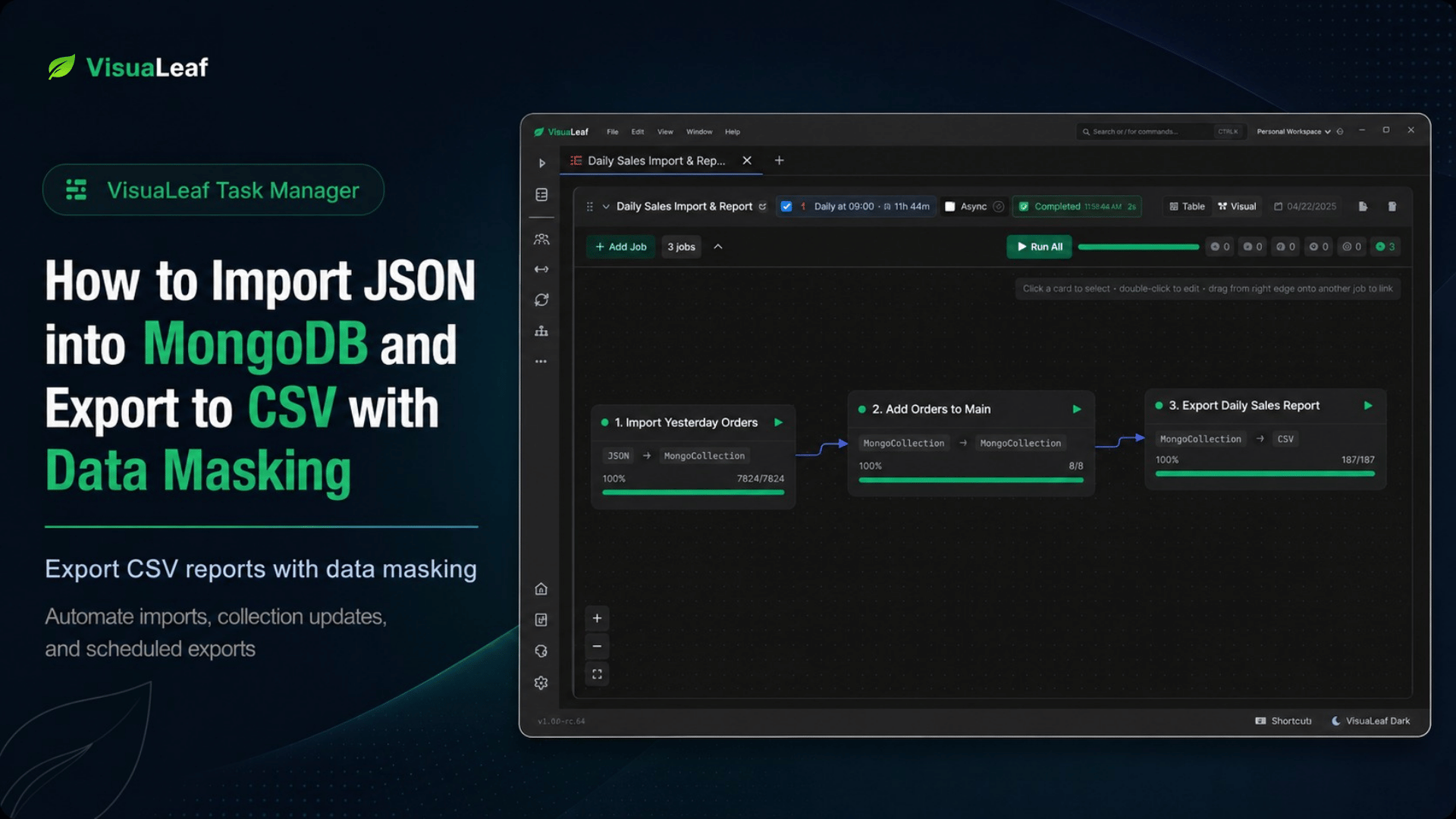


How to Import JSON into MongoDB and Export to CSV with Data Masking
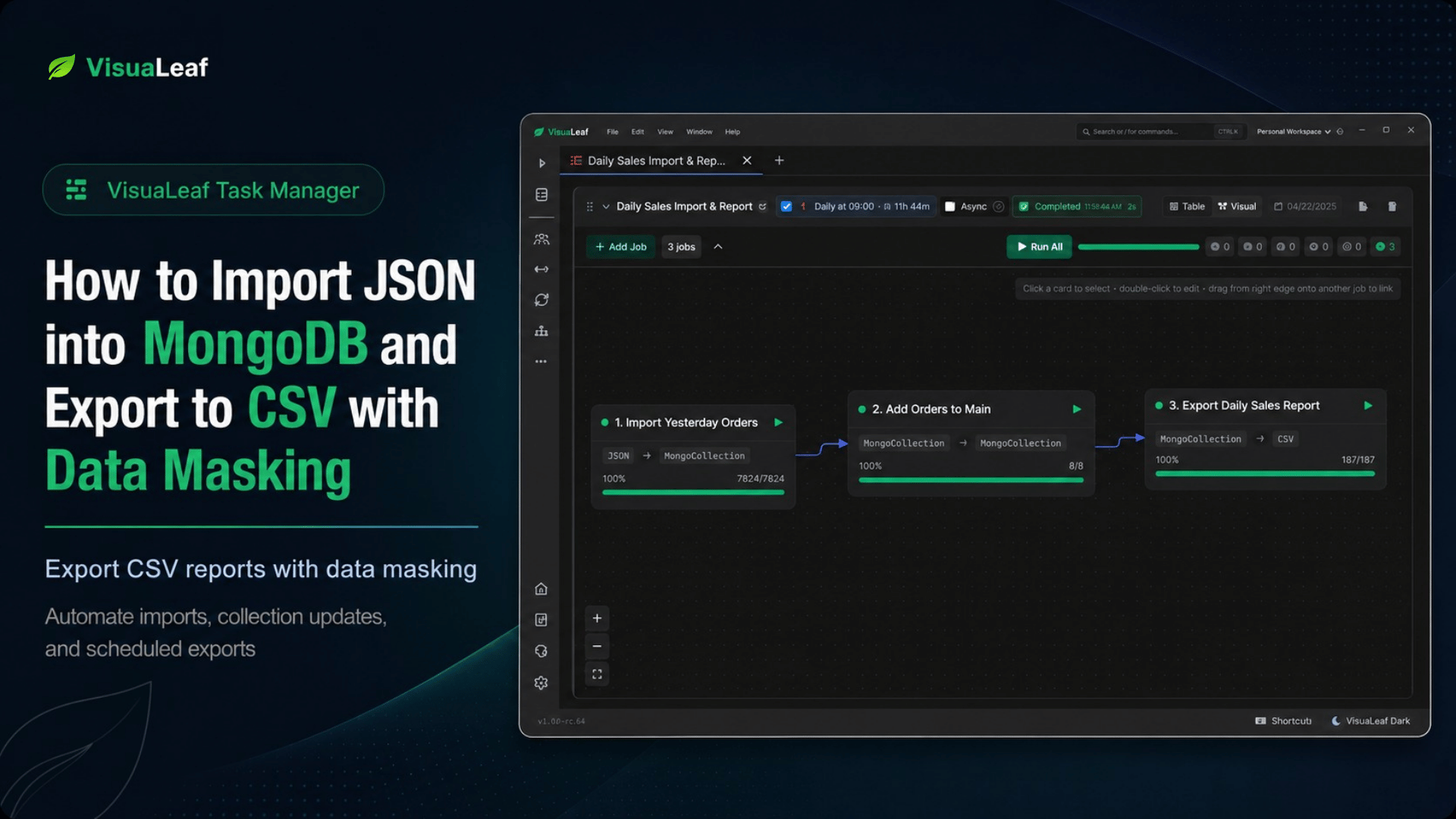
Automating a MongoDB JSON import, collection update, and masked CSV export in VisuaLeaf Task Manager.
Every morning, an online store receives the previous day’s orders from a marketplace partner.
The file comes in JSON format. The company needs to add those orders to its main MongoDB `orders` collection. The sales manager also needs a CSV report that can be opened in Excel.
That sounds like a small task. Import the file, copy the documents, export the report.
But in practice, a few things can break the process.
A date can be imported as a string. A field can have the wrong name. One batch may use `total`, while the main collection uses `totalAmount`. A temporary collection can keep old records and trigger duplicate key errors. A CSV export can create null values because the mapping points to fields that do not exist.
And then there is customer data. The manager may need the sales numbers, but they probably do not need real customer names or internal customer IDs.
This article walks through a real daily workflow:
Import marketplace JSON
        ↓
Store the batch in a temporary MongoDB collection
        ↓
Copy the orders into the main orders collection
        ↓
Mask customer fields during export
        ↓
Create a CSV report
The goal is not just to move data from JSON to CSV. The goal is to make the process repeatable, easier to check, and safer to share.
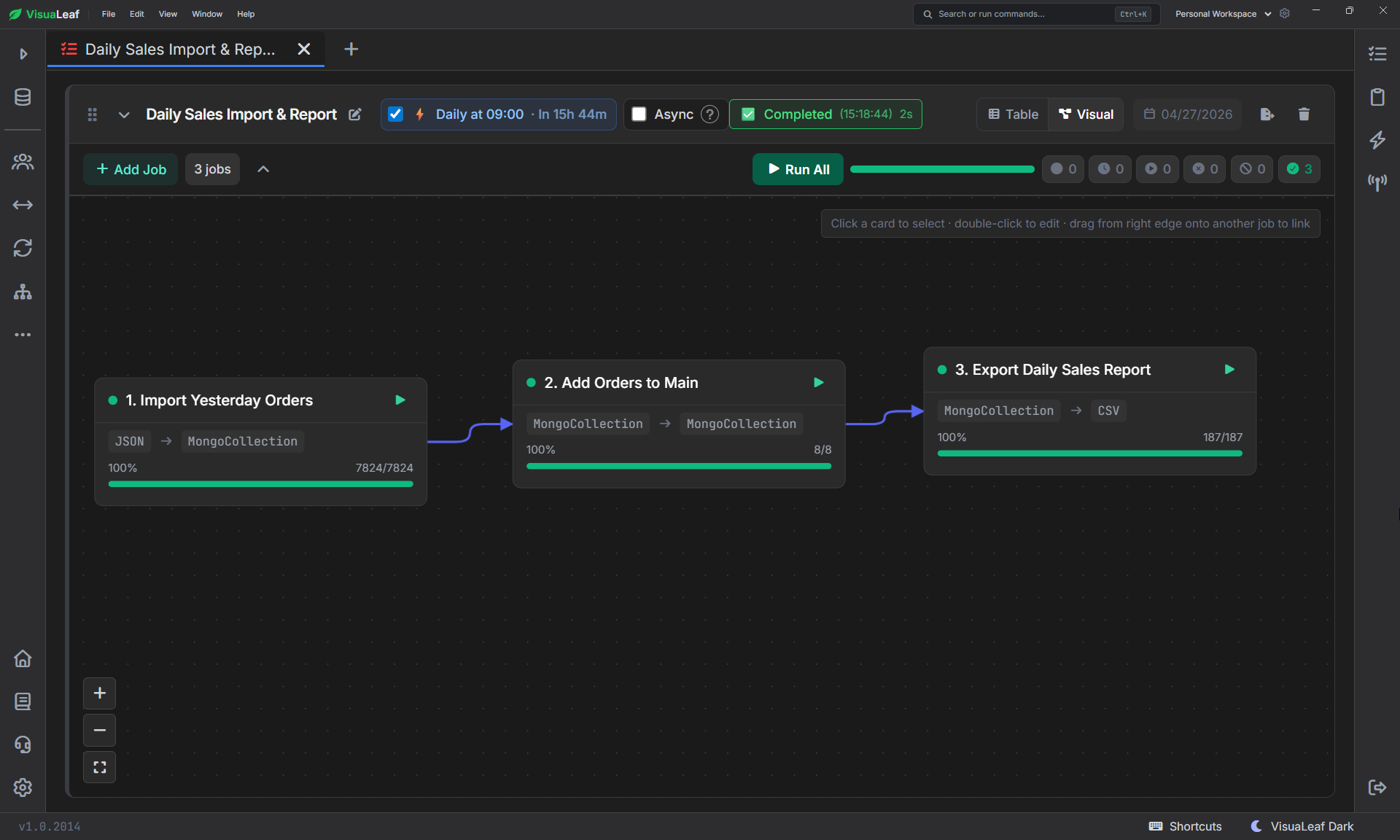
VisuaLeaf Task Manager runs the import, copy, and CSV export jobs in order.
The workflow
The workflow has three jobs:
Import Yesterday Orders
        ↓
Add Orders to Main
        ↓
Export Daily Sales Report
The important part is the parent relationship between the jobs.
`Add Orders to Main` depends on `Import Yesterday Orders`, so it only runs after the JSON file is imported successfully.
`Export Daily Sales Report` depends on `Add Orders to Main`, so the CSV is created only after the main `orders` collection has been updated.
This prevents the report from being generated when data is missing or incomplete.
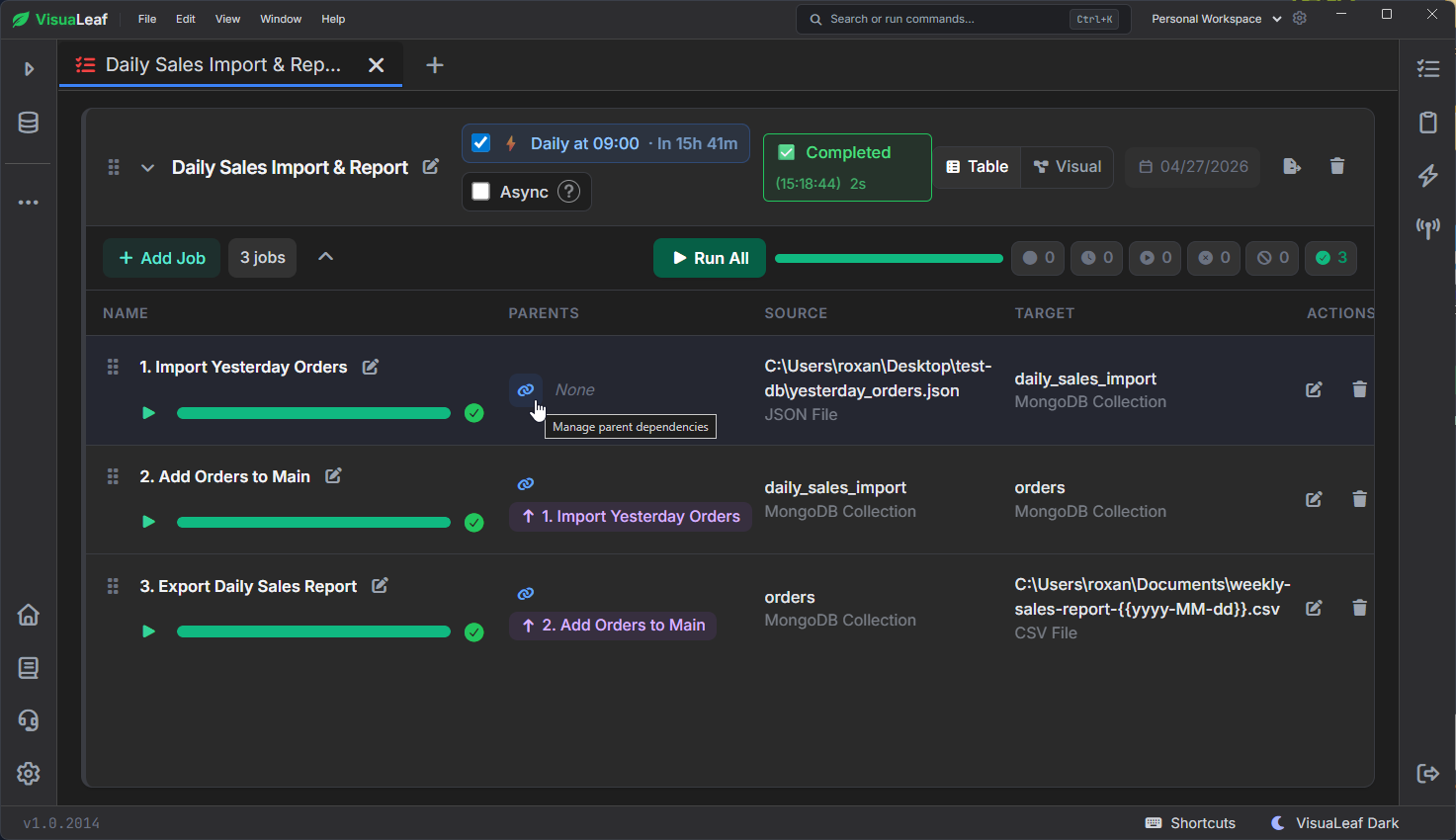
Parent jobs keep the import, copy, and CSV export running in the correct order.
The incoming JSON file
The partner sends a file with yesterday’s completed orders.
A single order looks like this:
{
  "orderId": "ORD-2026-07-201",
  "customerId": "CUST-1003",
  "customerName": "Sofia Rossi",
  "orderDate": "2026-07-21T08:20:00Z",
  "status": "completed",
  "paymentStatus": "paid",
  "currency": "EUR",
  "items": [
    {
      "sku": "EL-002",
      "productName": "Wireless Mouse",
      "category": "Electronics",
      "quantity": 1,
      "unitPrice": 24.99,
      "lineTotal": 24.99
    },
    {
      "sku": "EL-003",
      "productName": "Mechanical Keyboard",
      "category": "Electronics",
      "quantity": 1,
      "unitPrice": 79.99,
      "lineTotal": 79.99
    }
  ],
  "itemsSummary": "1x Wireless Mouse, 1x Mechanical Keyboard",
  "itemCount": 2,
  "subtotal": 104.98,
  "discount": 10,
  "shippingFee": 4.99,
  "totalAmount": 99.97,
  "couponCode": "WELCOME10"
}
There are two fields worth pointing out here.
The first is `items`. This is the real order structure. It keeps each product as a nested object with its own SKU, quantity, price, and line total.
The second is `itemsSummary`. This is not as rich as the `items` array, but it works better in a CSV report. Instead of putting a full JSON array into one spreadsheet cell, the manager sees a readable value:
1x Wireless Mouse, 1x Mechanical KeyboardMongoDB handles nested arrays well. CSV does not. So for the database, keep the array. For the report, export the summary.
The first job imports the file into a temporary collection:
`online_store.daily_sales_import`
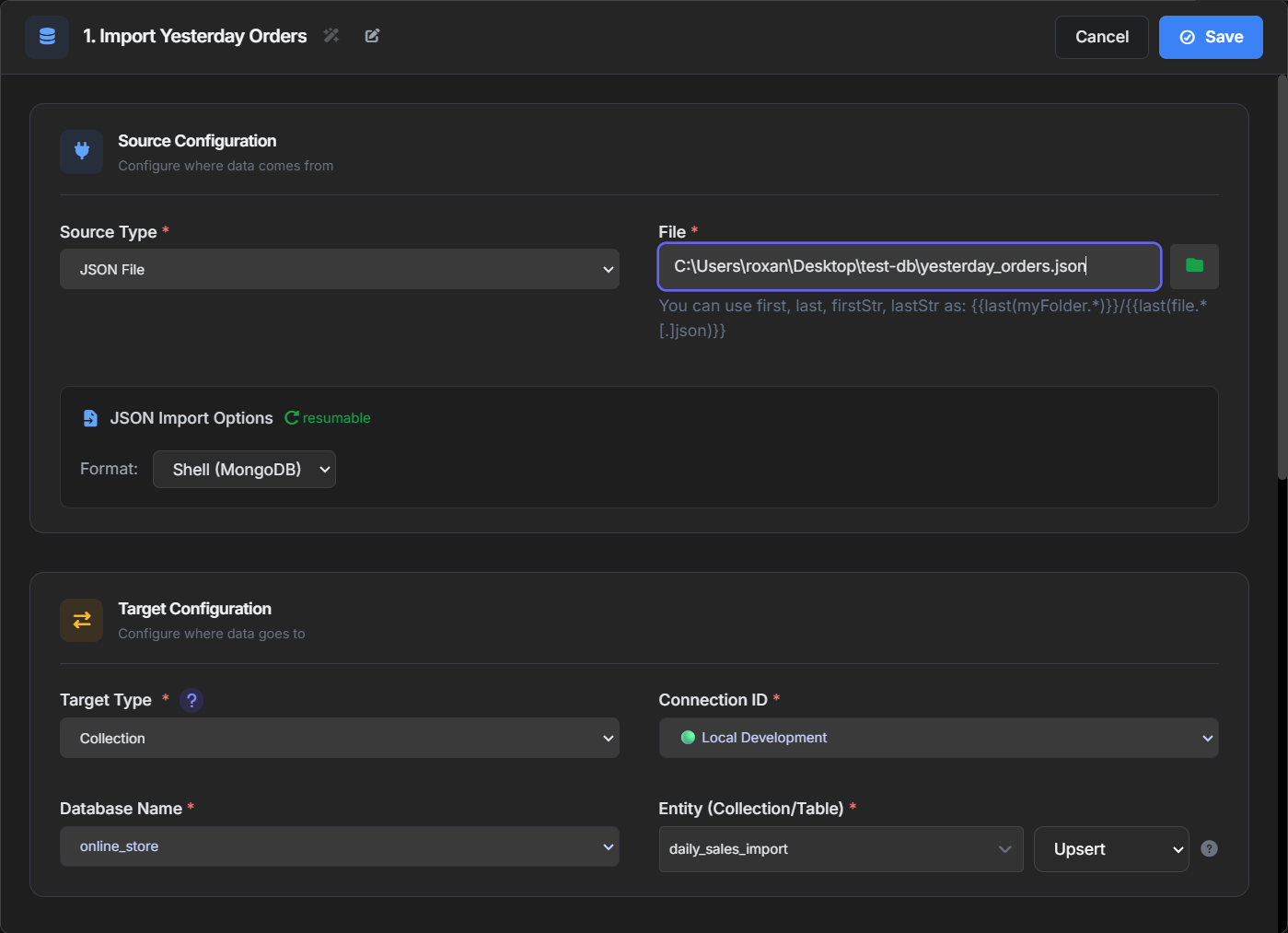
The import job loads the marketplace JSON file into a temporary MongoDB collection.
Why use a temporary collection?
The first job imports the JSON file into `online_store.daily_sales_import` instead of writing directly to `orders`.
This extra step is worth it.
The file comes from another system. Even if the partner usually sends the correct structure, a single change can break your report. A field can be renamed. A value can arrive as text instead of a number. A date can be formatted differently. Or the import job can use an old field mapping from another file.
The temporary collection lets you review the batch before it becomes part of the main order history.
If it keeps old documents, the next run may copy the same orders again. That can cause duplicate key errors later.
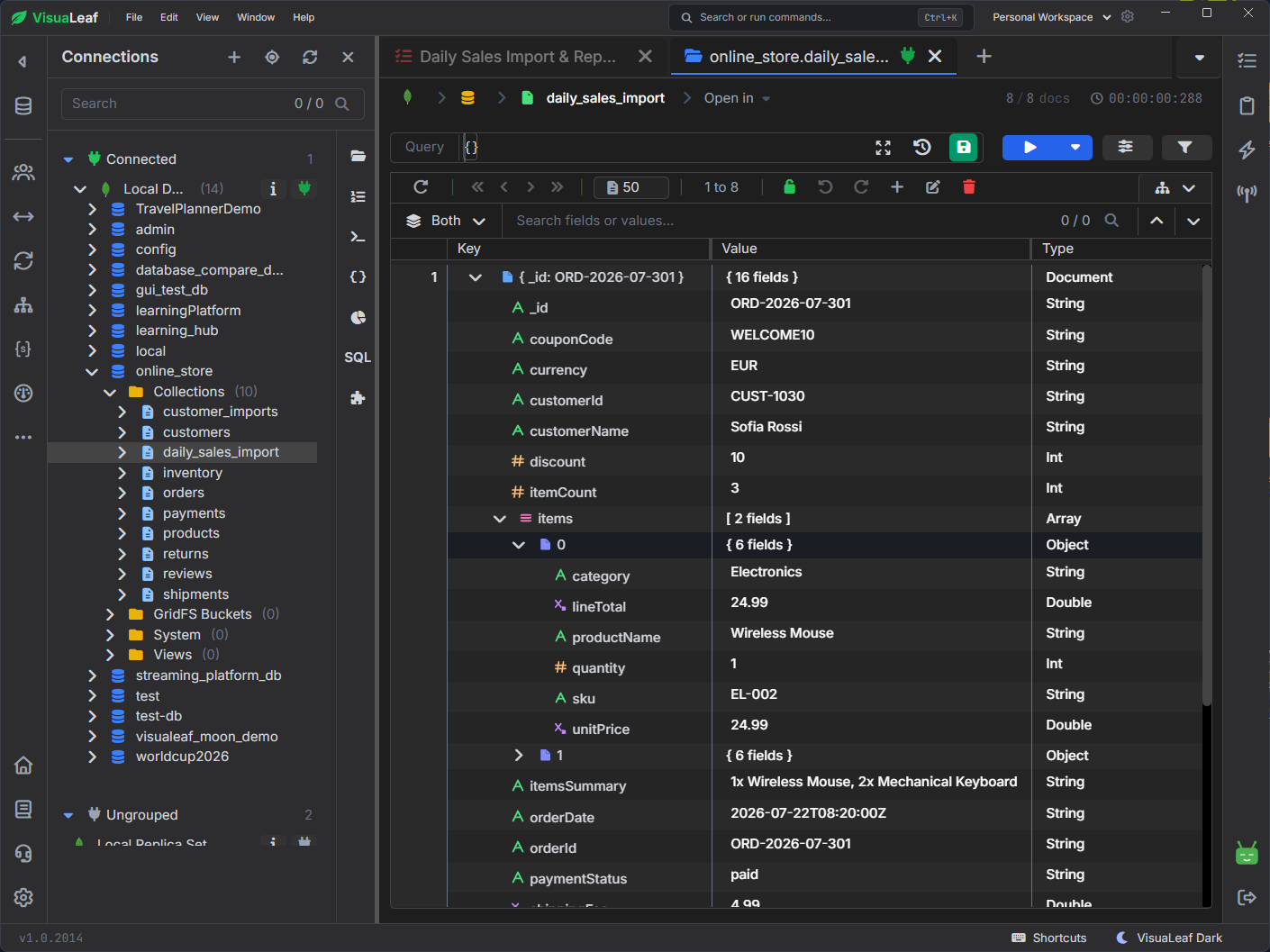
The imported orders are first stored in `daily_sales_import`, a temporary collection used to review the current batch before copying it into `orders`.
Generate field mappings every time the JSON structure changes
This is the easiest step to skip, and it is also where a lot of bad imports start.
When you select the JSON file, click:
Generate Field MappingsFor this order file, the mapping should include:
_id           → _id
orderId       → orderId
customerId    → customerId
customerName  → customerName
orderDate     → orderDate
status        → status
paymentStatus → paymentStatus
currency      → currency
items         → items
itemsSummary  → itemsSummary
itemCount     → itemCount
subtotal      → subtotal
discount      → discount
shippingFee   → shippingFee
totalAmount   → totalAmount
couponCode    → couponCode
If you do not regenerate the mappings, the job may reuse fields from an older import.
For example, if the previous import was a customer file, the mapping may still expect fields like:
country
email
joinedAt
name
customerId
status
The import may still run. But the order fields will be missing, and the result will look wrong. You may see null values or documents that only contain a few shared fields like `customerId` and `status`.
That is not a MongoDB issue. It is a mapping issue.
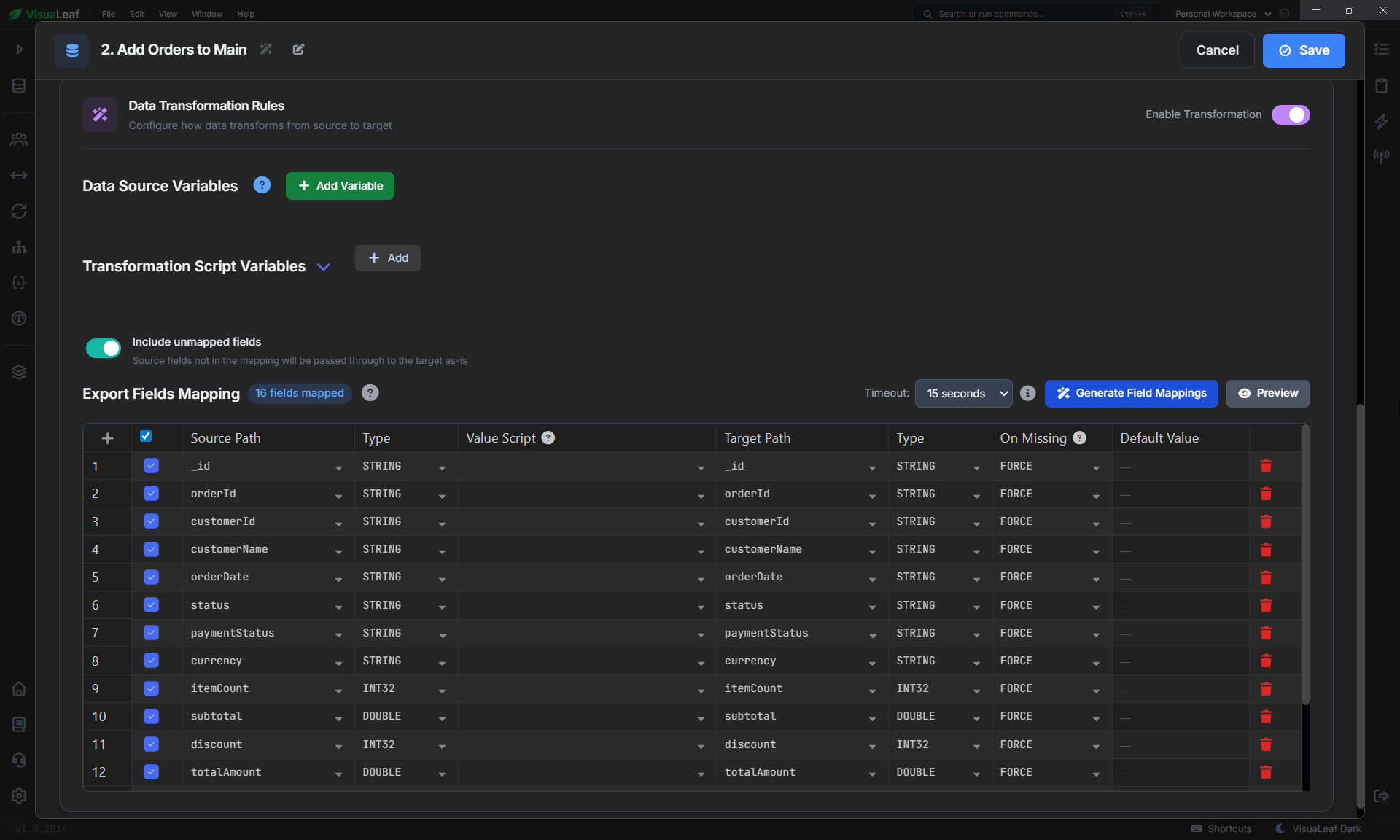
Field mappings make sure each imported order field is copied into the correct MongoDB field.
Copy the batch into the main orders collection
The second job copies documents from:
daily_sales_importinto:
ordersThis job should use `Import Yesterday Orders` as its parent.
A simple configuration is:
Source: online_store.daily_sales_import
Target: online_store.orders
Mode: Insert or Append
Parent: Import Yesterday Orders
Use insert or append because you are adding new orders to the order history.
Do not use replace mode on `orders` unless you really want to overwrite the full collection.
The main collection should keep all orders. The temporary collection should only hold the latest imported file.
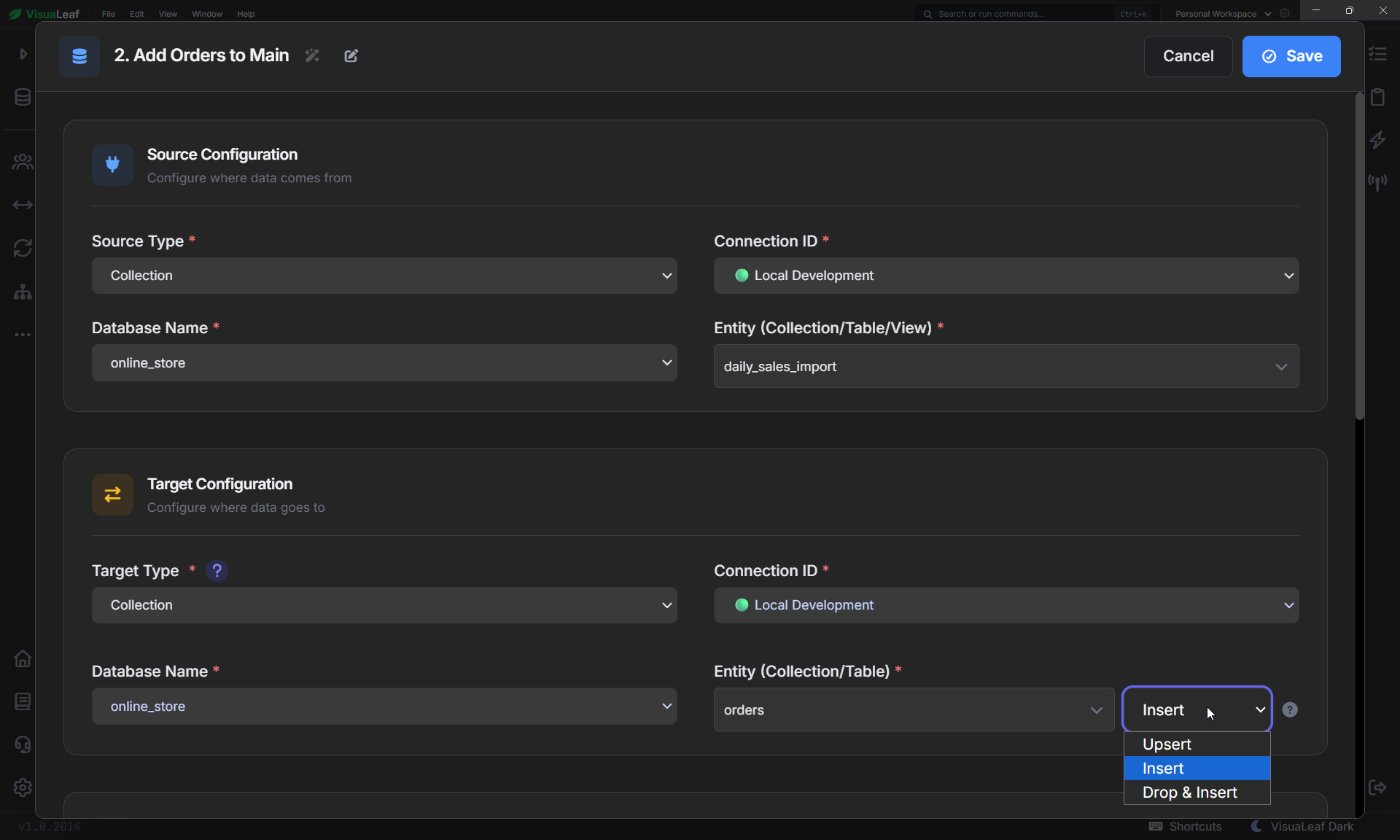
The copy job adds the imported batch from `daily_sales_import` into the main `orders` collection.
Duplicate key errors are useful, but they still need a fix
If you run the same batch twice, MongoDB may return this error:
E11000 duplicate key errorThat means MongoDB blocked a duplicate value for a unique field, often `_id` or `orderId`.
This is usually good. It stops the same order from being inserted twice.
But in a daily workflow, the error also tells you something is wrong with the process.
Common causes:
The temporary collection was not cleared.
The same JSON file was imported twice.
The partner sent duplicate order IDs.
The copy job tried to insert records already present in orders.
In testing, the temporary collection is often the problem.
If `daily_sales_import` contains old records and new records, the copy job tries to insert all of them. MongoDB accepts the new ones and rejects the duplicates.
The fix is simple: clear or replace the temporary collection before each new import.
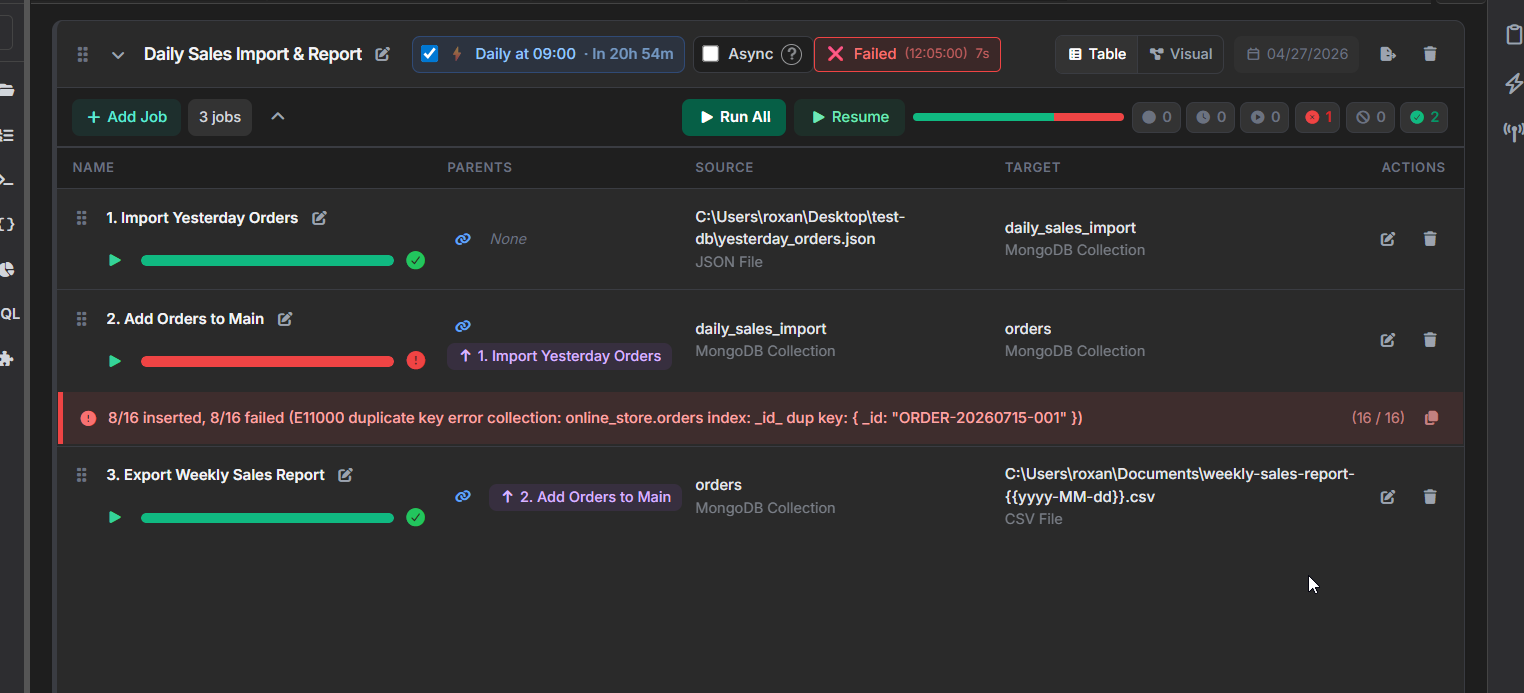
MongoDB blocks duplicate orders when the same `_id` already exists in the `orders` collection.
Export the weekly report from the main collection
The company imports marketplace orders every day, so the main MongoDB `orders` collection stays up to date.
But the manager does not need a CSV file every morning. In this case, the manager needs a weekly sales report.
That changes the source of the export job.
If you export from daily\_sales\_import, you export only the latest imported batch.
If you export from orders, you export the main order history, including the orders that were imported during the week.
For this workflow, the export job uses:
Source: online_store.orders
Output: weekly-sales-report-{{yyyy-MM-dd}}.csv
Parent: Add Orders to Main
The parent relationship still matters. The weekly CSV should be created only after the latest imported orders have been added to the main `orders` collection.
This gives the manager one report with the updated sales data, instead of sending a separate file every day.
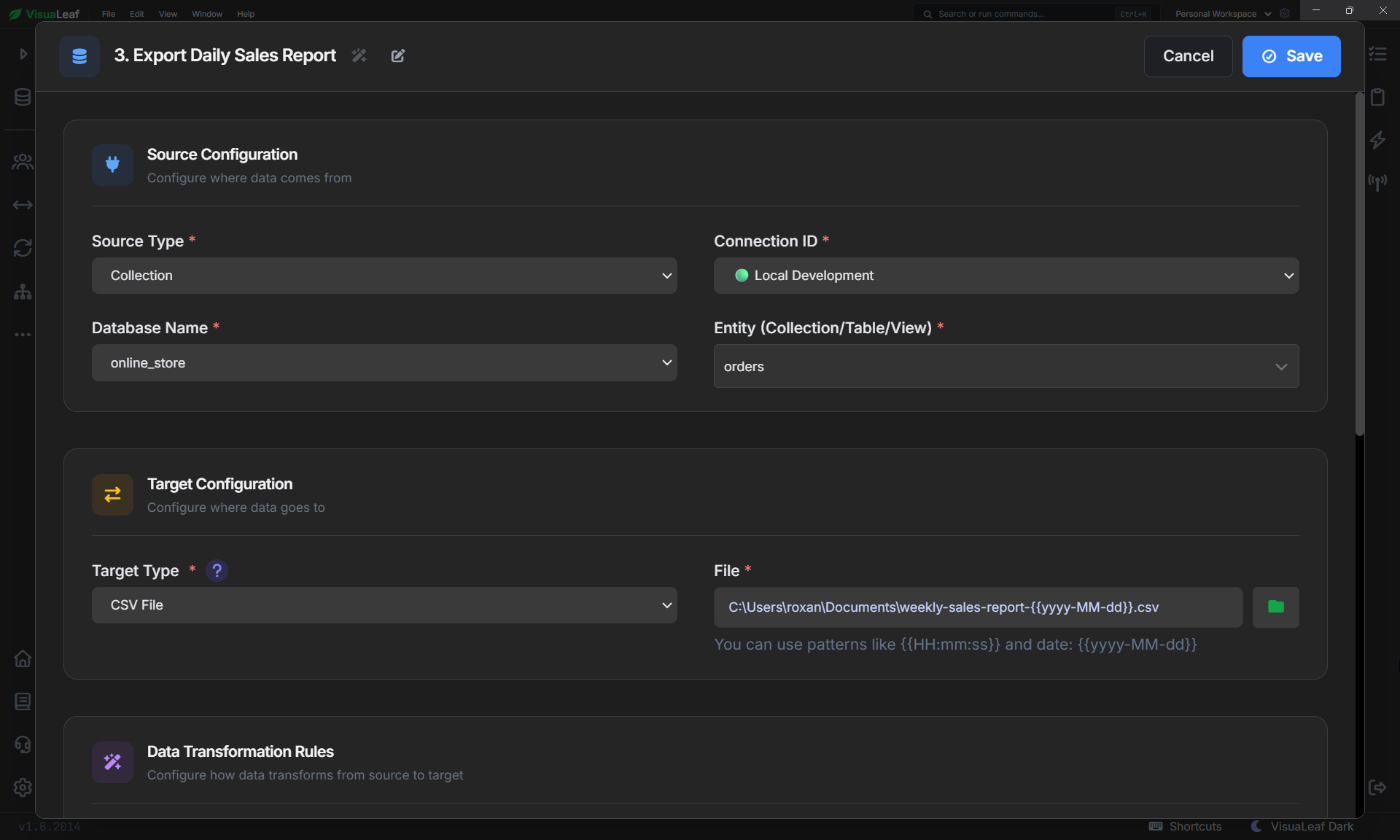
The export job creates the weekly CSV report from the main `orders` collection after the new batch is added.
Mask customer data during export
The manager needs sales data, but they do not need the real customer name or internal customer ID.
Instead of changing the original MongoDB documents, the export job applies masking only in the CSV output.
In this workflow:
customerId   → hash(value)
customerName → maskName(value)
This keeps the original data intact in MongoDB, while the exported report hides sensitive customer details.
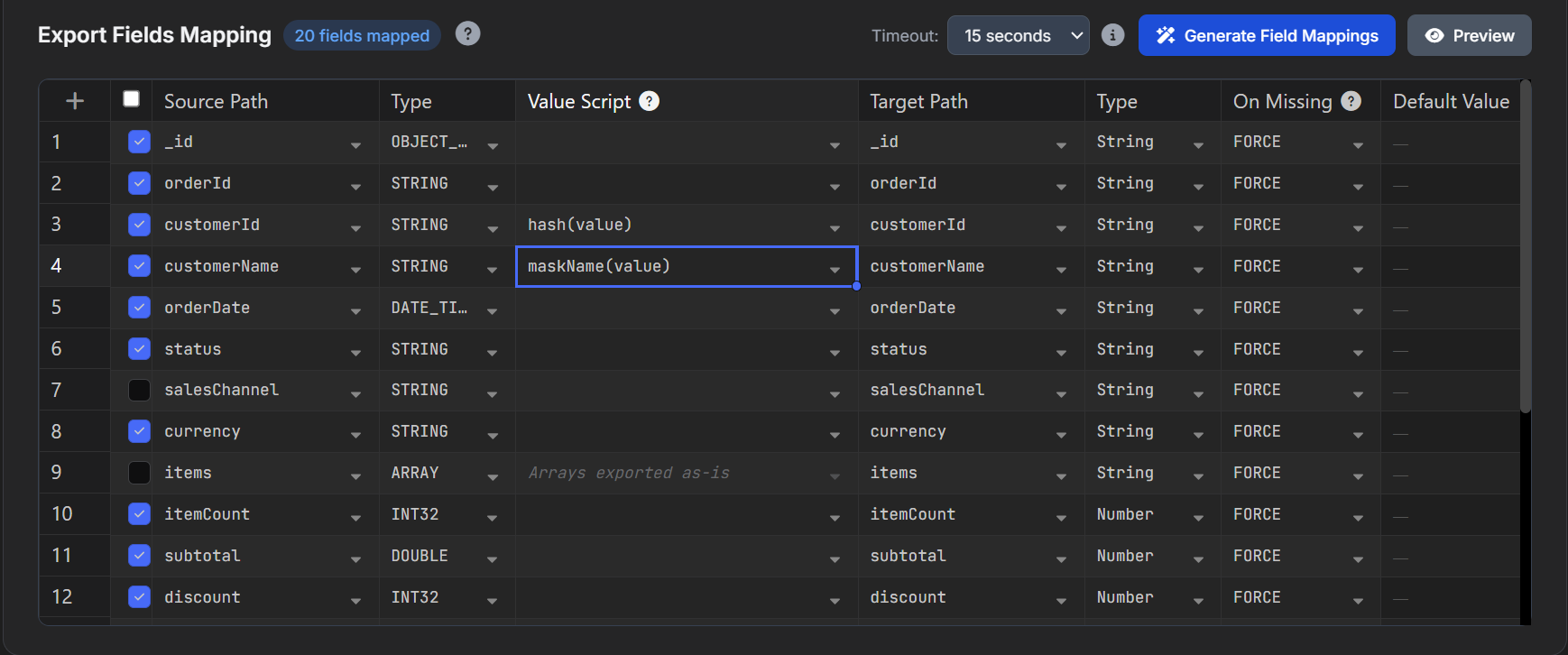
The export job masks customer data by hashing `customerId` and masking `customerName` before writing the CSV.
What maskName(value) does
The maskName(value) transformation keeps the first character and replaces the rest with asterisks.
Example:
Alex Ionescu → A*
Mia Thompson → M*
It does not create a fake name.
It masks the original value. The report still has a customer-name column, but the real name is hidden.
This is useful when the report needs to show that a customer exists, but not who the customer is.
What hash(value) does
The `hash(value)` transformation changes the customer ID into a hashed value.
Example:
CUST-1002 → 043a5f9b...The same input should produce the same hashed output.
That means the report can still show that two orders belong to the same customer without exposing the original customer ID.
Example:
Original customerId: CUST-1002
Masked customerId:   043a5f9b...Original customerId: CUST-1002
Masked customerId:   043a5f9b...
This is useful for analysis.
The manager can group orders by the masked ID, but they cannot see the real internal ID.
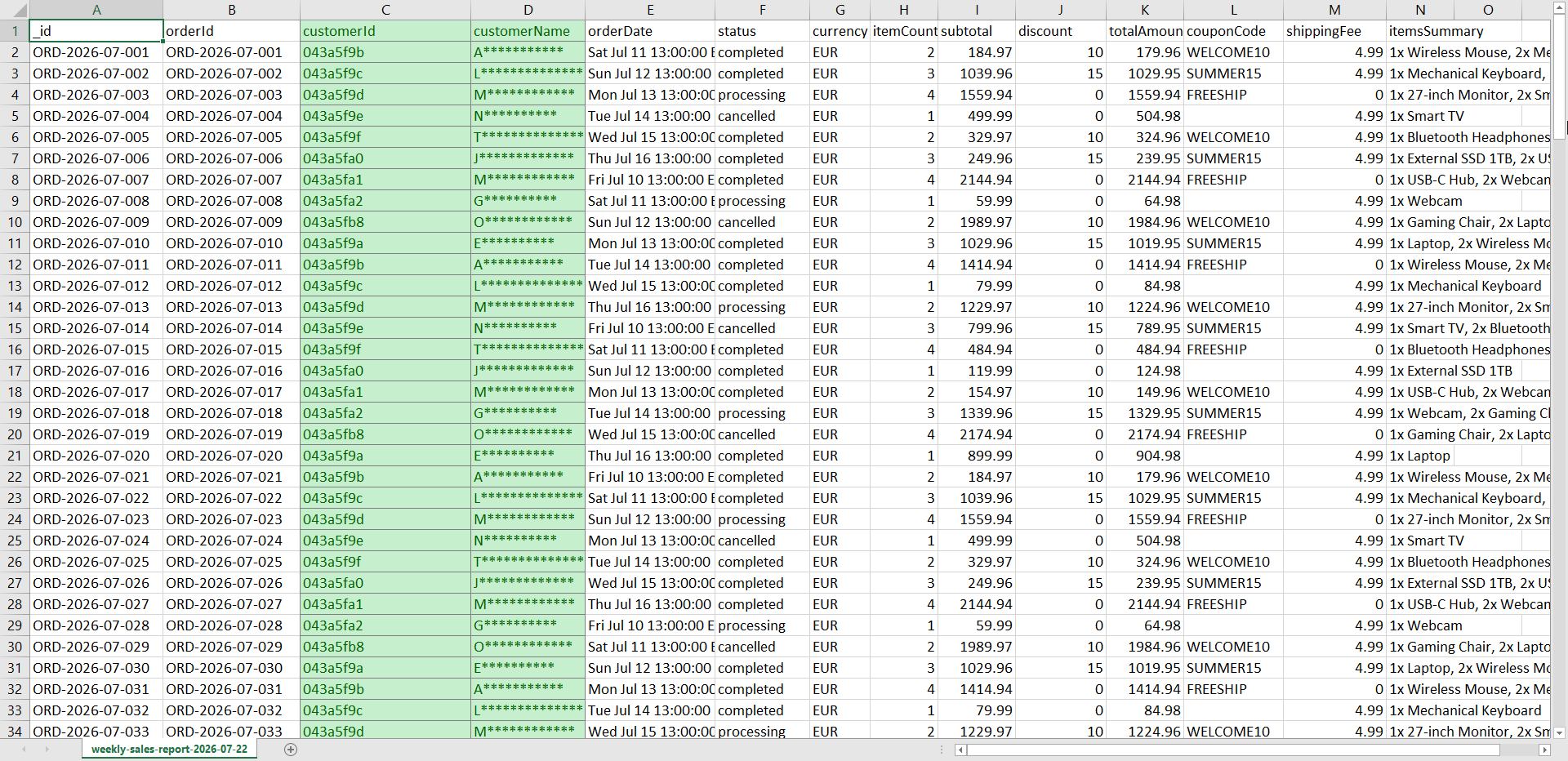
The export job masks customer data by hashing `customerId` and masking `customerName` before writing the CSV.
Schedule the workflow
Once each job works independently, schedule the full workflow.
The final process is:
Receive marketplace JSON
        ↓
Import the daily batch
        ↓
Add orders to MongoDB
        ↓
Mask customer details
        ↓
Export the CSV report
Set the schedule to run every morning at 09:00.
The parent relationships keep the jobs in order.
The report does not run before the copy job. The copy job does not run before the import job.
That is the main reason to use a workflow instead of three separate jobs.
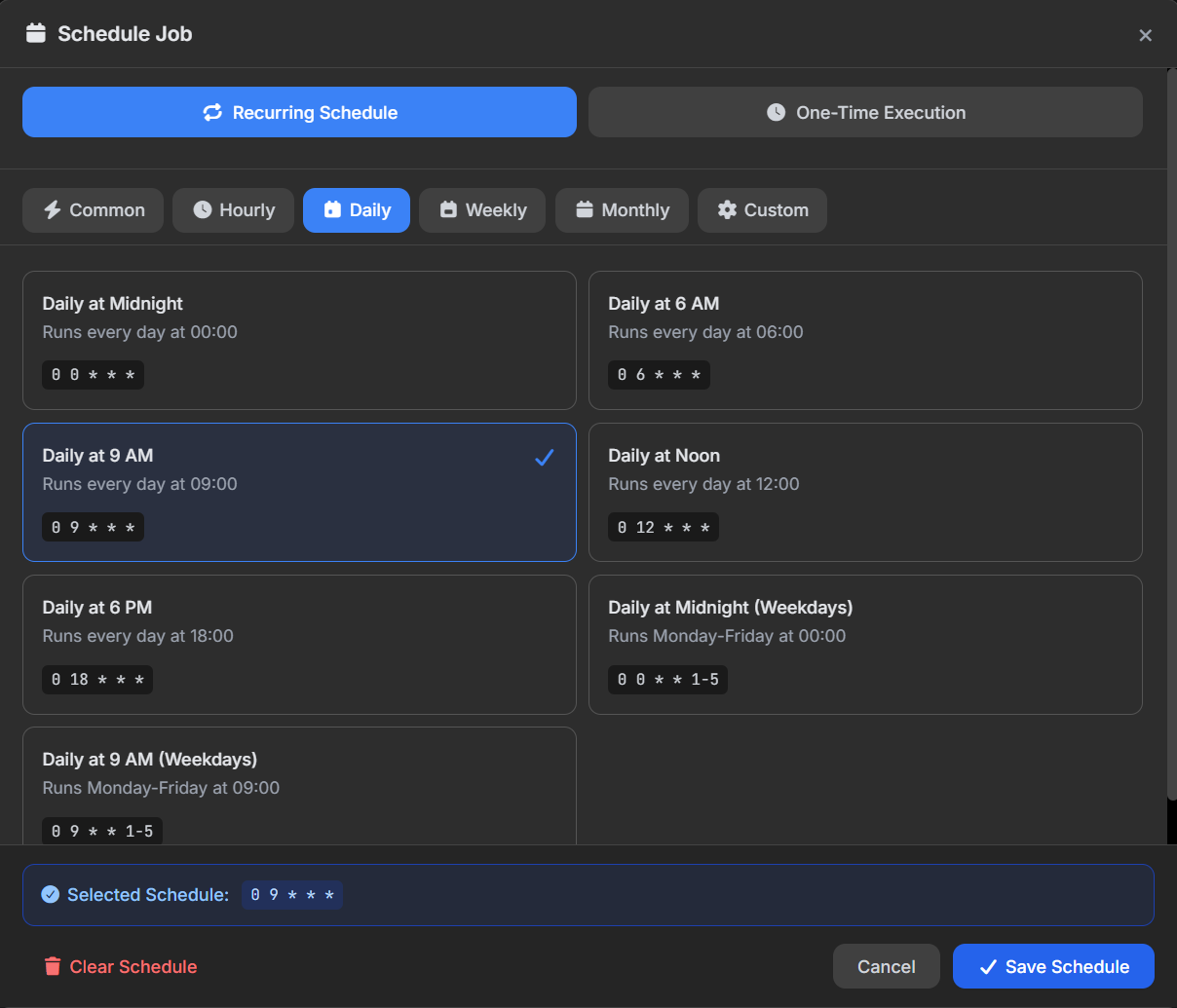
The workflow is scheduled to run every day at 09:00, so the import and report steps run without manual work.
What this workflow actually solves
This workflow is not only about converting JSON to CSV.
It solves a real process that many teams deal with: marketplace data comes in one format, MongoDB stores the operational data, and the manager needs a spreadsheet they can review without seeing unnecessary customer details.
In this setup, the daily JSON file is imported into `daily_sales_import`. Then the new orders are copied into the main `orders` collection. At the end, the weekly CSV report is created from the updated `orders` collection.
Before the CSV is exported, sensitive customer fields are masked:
customerName → A*
customerId   → 043a5f9b...
The original MongoDB documents stay complete. Only the exported report hides customer details.
This makes the process repeatable, easier to check, and safer to share.
Final result
At the end, you have one scheduled workflow that handles the daily marketplace file and keeps MongoDB up to date.
You avoid repeating the same import and export steps by hand. You reduce the chance of copying old batches again. You keep the report readable with fields like `itemsSummary`. And you share the sales data without exposing the original customer identities.
The small details still matter: generate the mappings when the JSON structure changes, keep field names consistent, store dates as `DATE_TIME`, and preview the export before trusting the CSV.
Once those pieces are set, the workflow is easier to run, easier to check, and safer to share.
I built this example in VisuaLeaf using Task Manager and export transformations.
If you work with MongoDB imports, scheduled exports, or masked reports, you can try it here: https://visualeaf.com/download