Your agent says “it works.”You still want to see it.
Your agent says “it works.”
You still want to see it.Give Rill a public URL and a task. It runs the browser and records what happens, so you can watch and share.
1. 1Website 2. 2Task
Website URLOpen an example recording →
Next →
Or try a demo site:Sauce DemoTodoMVCThe Internet
Working in your coding agent?Copy agent promptCopy agent prompt
A browser run, from start to finishMade with Rill
media loading
Play Pause
Play Pause 10 Seek backward 10 Seek forward Mute Unmute
0:00 / 0:00 1x Playback rate Enter fullscreen mode Exit fullscreen mode
Works with
- Codex
- Claude Code
- Cursor
- Any agent with browser tools
01 / A task becomes a recording
You describe it.
Rill takes it from there.Three steps from a URL to a recording you can replay, inspect, and share. Nothing to install for a cloud run.
1. 01
Describe the task
Enter a public website URL and tell Rill what to do. 2. 02Sign in to Rill
Rill follows your instructions in a cloud browser and records the run. 3. 03Watch and share
Replay the video, inspect the diagnostics, and share a link when you’re ready.02 / The whole journey
See every step.
Skip the retelling.Watch how the browser moved through your product. Keep the recording beside the work, whether you’re exploring a flow or showing someone what happened.
Browser recording Playback + timeline
03 / Behind the screen
The recording tells a story.
The details explain it.A page can look fine while a request fails behind it. Inspect console messages, network status codes, and browser events alongside the video.
Console / Network / Timeline Example
00:04Navigate`/pricing`
00:05GET`/api/plans 200`
00:08Console`Request failed`
00:08GET`/api/usage 500`
Follow the moment. Find the context.
04 / Ready for the next person
Send the run.
Keep the context.Share the video and diagnostics together. A teammate can replay the flow, or your next coding agent can inspect the evidence and pick up the investigation.
Explore recording inspection →
↗
One recording.
The details included.VideoConsoleNetworkTimeline
Private until you choose to share.
Localhost / my agent
Record its browser, too.
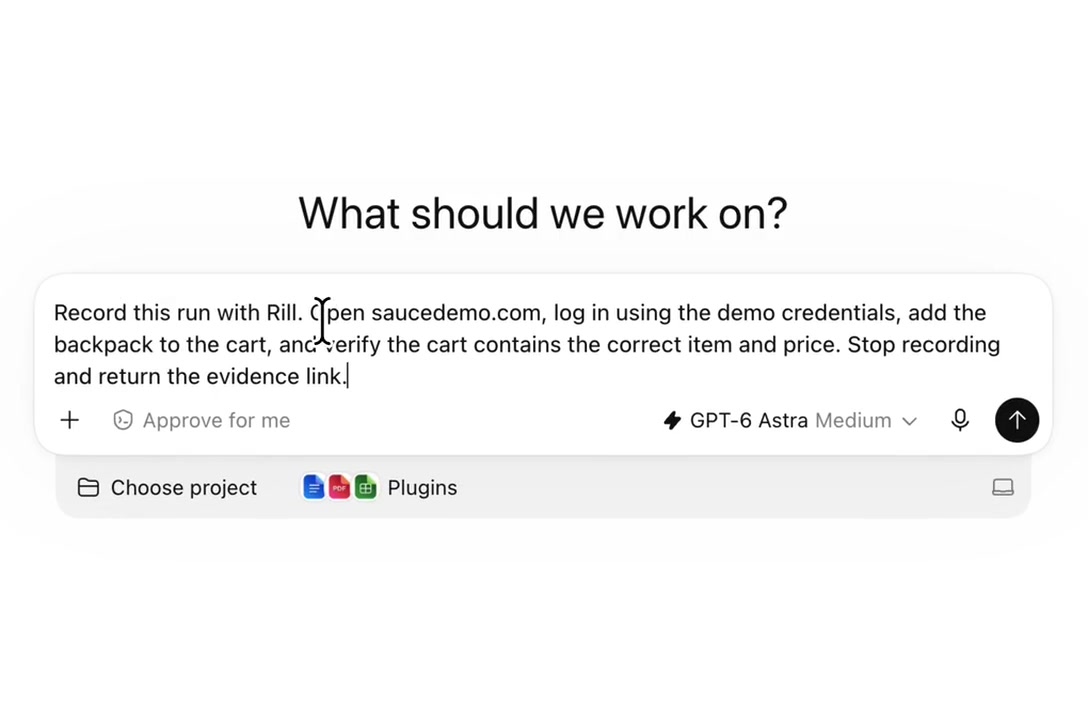
Use Rill with Codex, Claude Code, Cursor, or another agent with browser tools. Capture local apps and the work your agent is already doing. No sign-up needed for your first recording.
PASTE INTO YOUR CODING AGENT INSIDE YOUR PROJECT
Install and read the Rill skill at https://userill.dev/skill.md for this project, then use it to record one useful browser flow. Follow our current task when clear; otherwise choose a short, non-destructive smoke test. Check prerequisites and browser control, start anonymously if I’m not connected, and return a playable recording link with what you checked and when it expires. Ask if the target is unclear or application changes are needed.
Copy agent promptCopy agent promptRead SKILL.md ↗
A few things worth knowing
Before your
first run.More detail in the docs.
01
What does Rill do with my URL and prompt?
+
Rill opens the public website in a cloud browser, follows your instructions, and records the journey. You can watch the recording and inspect its console messages, network requests, and interaction timeline from your dashboard.
02
Do I need to install anything or bring an API key?
+
For a cloud recording from this page, just enter a URL and task, then sign in with GitHub or Google. No installation or AI API key is needed. The CLI also supports cloud runs with Node.js 22 or newer.
03
Can I use Rill from my coding agent?
+
Yes. Your coding agent can submit a cloud task through the CLI, or use Rill to record a browser it controls. The getting-started guide explains both paths.
04
Can Rill open localhost or private websites?
+
The homepage form is for public websites. To record localhost or an app on your private network, use the local recording workflow with your coding agent in an environment that can reach it.
05
Can it record a website that requires login?
+
Cloud runs can use a saved website account configured separately and selected through the CLI. Signing into Rill does not sign the browser into your website. CAPTCHA, multi-factor authentication, and SSO flows are not supported by saved-account login. Saved-account setup →
06
Who can see my recording?
+
Cloud recordings start private to your workspace. Sharing is a separate action: when you create a share link, anyone with that link can view it. Review the recording and diagnostics before sharing.
07
What’s included for free?
+
You can start with the Free plan, including monthly cloud-run credits and recording storage. See Pricing for the current allowances, paid plans, and additional run credits. View pricing →
Your next browser flow