
Stop wasting hourstrimming silence.
Save 96% of your editing time
Stop wasting hourstrimming silence.
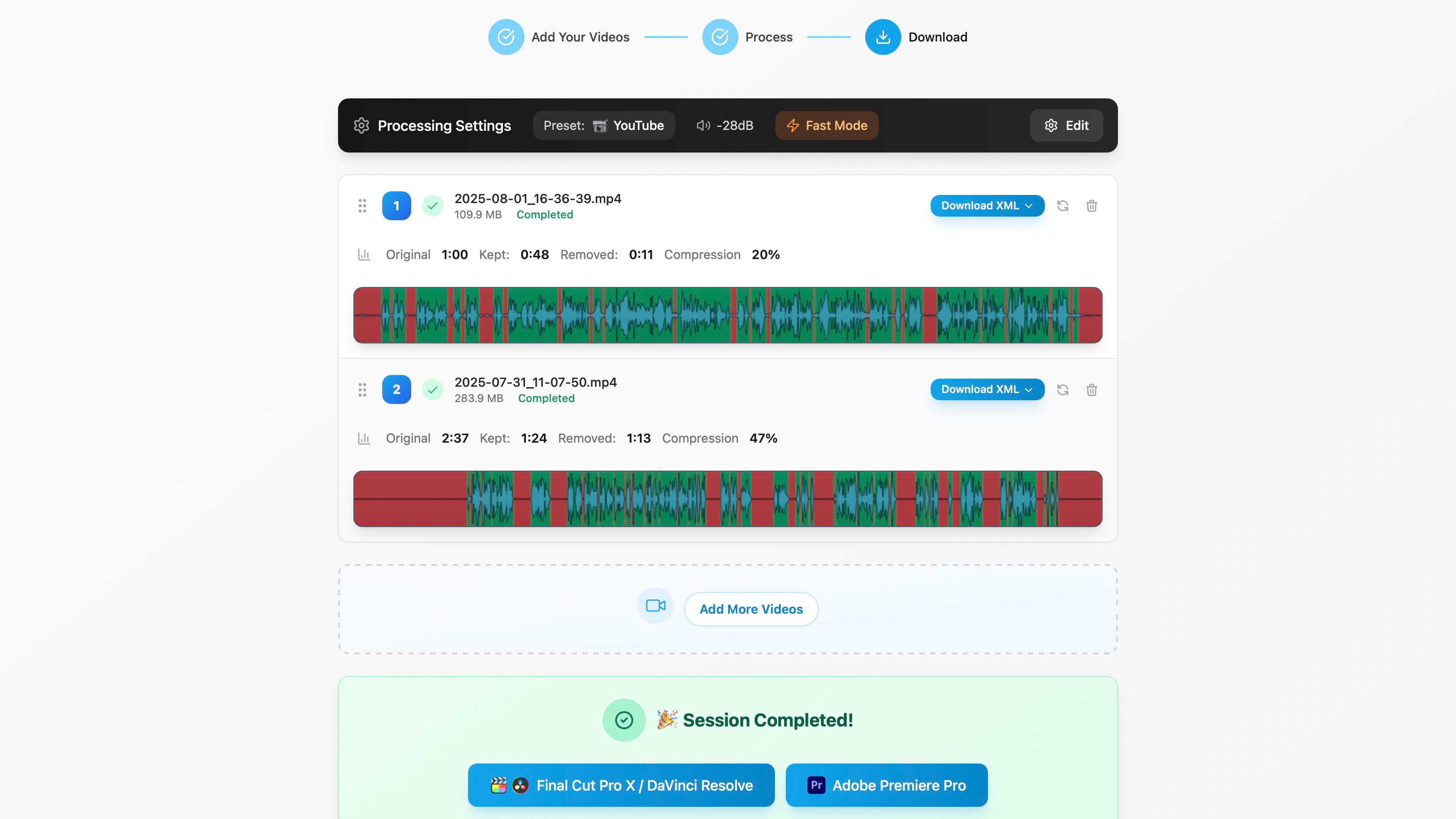
AutoTrim cuts silences, filler words, and repetition from all your clips at once — processing them in parallel and exporting a single, clean timeline ready to edit in Final Cut Pro, Premiere, or Resolve. On CapCut? Get clips ready to drop in.
Try AutoTrim for freeWatch a 90s Demo
How it works in three steps
1
From this: Raw footage

2
To this: Silences & repetitions removed

3
In seconds: Clean XML timeline


≈ 29× faster
Save \~46 min of work on 30 min of footage
100% local & private
See AutoTrim in Action
AutoTrim cuts, cleans, and organizes your footage — all in seconds. Watch it in action:
AutoTrim Demo

▶ Watch 90s Demo
From raw footage to clean timeline in one click
AutoTrim saves you time. A lot of time.
See how much faster your workflow becomes
Manual editing
Traditional workflow
48 min
1×
0 min100% of manual time48 min
Other tools
Semi-automated
20 min
2.4× faster
0 min42% of manual time48 min
AutoTrim
Fully automated
1 min
48× faster
0 min2.1% of manual time48 min
Based on a real client case: 30 min of raw footage
Why Editors Love AutoTrim
Trusted by creators and professionals worldwide
As an editor, I'm always looking to automate the boring parts. I tried other tools, but none really worked. With AutoTrim, the UX is clean, intuitive, and it does exactly what you want — no extra fluff. It saves me at least an hour on every project.

Robin Servoisier
Pro Editor
AutoTrim saves me hours. It makes the whole derushing process lighter, less repetitive, and the speed is shocking — I can process gigabytes in seconds. Super intuitive, with previews that help a lot. Highly recommend.

Izayi
Freelance Editor
I record 2-3 hour podcast episodes with multiple guests. AutoTrim cuts out all the dead air and awkward pauses automatically. It saves me at least 2 hours of editing per episode. Total game changer for my workflow.

Theo Won
Podcaster
How to Automatically Trim Video Silences in Seconds
From raw clips to a clean timeline — here's how AutoTrim works
Your browser does not support the video tag.
1
Drop your files
Drag & drop your clips. They appear instantly in the queue, ready to go.
Step 1 of 3
Your browser does not support the video tag.
2
Trim in parallel
Hit "Process" and let AutoTrim analyze all files at once. Preview your timeline as soon as a clip is done.
Step 2 of 3
Your browser does not support the video tag.
3
One timeline, all clips
AutoTrim automatically merges ALL your processed clips into ONE single timeline. Everything is already assembled and ready to edit - just export and go.
Step 3 of 3
Compared to other tools:
AutoTrim
With AutoTrim, you drop all your files in, they process in parallel, and you get one finished timeline.
Other Tools
With other tools, you process files one-by-one, export one XML per clip, and manually stitch everything together — wasting minutes on every project.
Why AutoTrim beats every other silence-cutting tool
Feature
AutoTrim
Other Tools
Import
Drag & drop all files at once
Import one file at a time
Processing
Parallel multi-clip processing
Sequential clip-by-clip
Result
One clean timeline ready to edit
Multiple timelines to merge manually
Real-world speed
48× faster on multi-clip projects
Time multiplied by number of clips
AI & Cost
Runs entirely on your computer — no extra cost, no recurring payment
Requires subscription to access AI features, recurring fees
Try AutoTrim for free — see how much faster your workflow becomes.
Why creators never go back.
From drag-and-drop to clean XML, AutoTrim is packed with features that save time — and sanity.
Popular
Drag & Drop Everything
Drop any number of video or audio clips; AutoTrim ingests them instantly, whatever the format.
Popular
Single or Multi-XML
Export one clean timeline or individual XMLs – no more puzzle pieces.
Popular
Smart Video + Audio Sync
Drop video and audio files separately — AutoTrim detects matching pairs, syncs them automatically, and exports both perfectly aligned in your timeline.
100% Local Processing
AI, video processing, everything runs on your machine. No uploads, no waiting, maximum speed.
Your browser does not support the video tag.
Fine-Tune Cuts
Silence threshold, pre/post-roll, min gap – dial in your exact editing style.
Popular
Your browser does not support the video tag.
Parallel Processing
Max out your cores: up to 4 jobs run side-by-side for zero downtime.
Smart Presets
YouTube, Podcast, Vlog… one click applies the perfect settings.
MP4, MP3 or CapCut-ready clips
Don't need a timeline? Render your trimmed edit straight to video or MP3. Editing in CapCut? Export a folder of numbered clips and drop it into your project: the edit is already in order, and every cut stays editable.
Repetition & Hesitation Remover
Cuts filler words and double-takes automatically.
EXPERIMENTAL
Multilingual & Format-Agnostic
French, English, Spanish… MP4, MOV, MKV, WAV, MP3 – video or audio, it just works.
Blazing-Fast Preview
Scrub in real-time, no lag, even on long footage.
Popular
Optimized for Pro Editing Machines
AutoTrim is built for the hardware you already own. It runs AI models locally, using the full power of your CPU and GPU — with no slow uploads and no extra server costs.
FAQs
Does AutoTrim work on Mac and Windows?
Yes — AutoTrim runs natively on both macOS and Windows. There is no Linux build for now.
Does it support Final Cut, Premiere, Resolve?
Yes! AutoTrim exports XML/FCPXML timelines compatible with all these major NLEs.
Do my files leave my computer?
Nope. All processing stays safely on your device.
Can I adjust how precisely AutoTrim cuts?
Yes, easily customize silence thresholds, minimum silence lengths, and padding times.
Can I remove filler words & hesitations?
Yes, this feature is available but still experimental. Results may vary depending on language and diction.
Can I process multiple clips simultaneously?
Yes. Parallel processing is built-in from day one.
Does AutoTrim support audio files?
Yes! AutoTrim works with both video and audio files. You can even drop video and audio separately — if they match, AutoTrim syncs them automatically and exports both aligned in your timeline.
Does it work with CapCut?
Yes. CapCut can't import XML timelines, so AutoTrim exports your trimmed edit as numbered clips (001, 002, 003…). Drop the folder into CapCut: the clips line up in order and you keep control of every cut. You can also export a single, already-cleaned MP4.