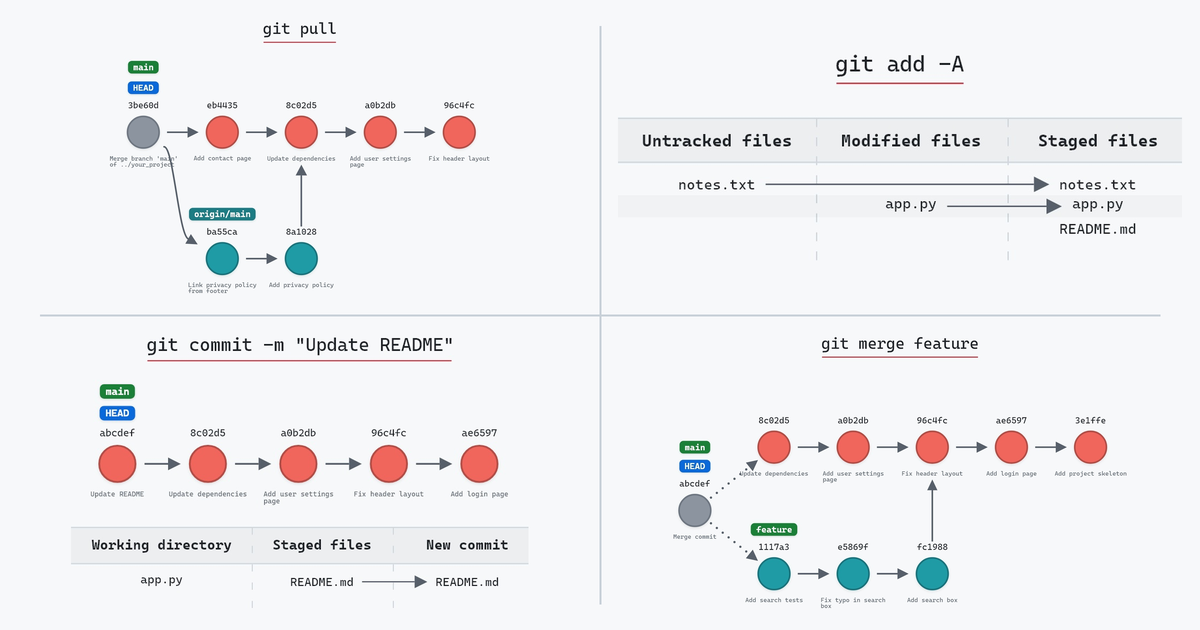
The Animated Git Cheat Sheet
FilterAll 128Start a project 4Configure Git 11Stage and commit 6Manage files 6History and search 14Compare changes 5Branches 14Merge 6Rebase and cherry-pick 8Remotes 8Fetch, pull, and push 12Tags 7Stash 11Undo and recover 16
Safe nothing is lostCaution rewrites history, but you can get it backDestructive can lose work for good
A repository is a project folder with its history in a hidden .git folder. Make a new one, or clone one that already exists, history and all.
Create a new repository
SafeSelect
`git init`
Creates an empty Git repository in the current folder, stored in a hidden `.git` folder. No files are tracked until you add and commit them.
Loading the graph…
Shown: `git init`EnlargeReplay
Clone a repository
SafeSelect
`git clone <url>`
Downloads the repository at `<url>` with its full history into a new folder, checks out its default branch, and adds the source as the remote `origin`.
Loading the graph…
Shown: `git clone https://example.com/your_project.git`EnlargeReplay
Clone only the N latest commits
SafeSelect
`git clone --depth <N> <url>`
Clones only the `<N>` latest commits of the default branch, leaving out the older history.
Loading the graph…
Shown: `git clone --depth 3 https://example.com/your_project.git`EnlargeReplay
Clone a repository and check out a specific branch
SafeSelect
`git clone -b <branch> <url>`
Clones the repository and checks out `<branch>` instead of the remote's default branch.
Loading the graph…
Shown: `git clone -b feature https://example.com/your_project.git`EnlargeReplay
Settings made with `--global` apply to all your repositories on this machine and are saved in `~/.gitconfig`. Leave out `--global` to set something for the current repository only.
Set your author name
SafeSelect
`git config --global user.name "<name>"`
Sets the name Git records as the author and committer of each new commit.
Loading the graph…
Shown: `git config user.name "Jacob Stopak"`EnlargeReplay
Set your email address
SafeSelect
`git config --global user.email "<email>"`
Sets the email address Git records for the author and committer of each new commit.
Loading the graph…
Shown: `git config --global user.email "jacob@initialcommit.io"`EnlargeReplay
- Undo`git config --global --unset user.email`
- WatchWriting the system config file needs admin rights.
- Undo`git reset --soft HEAD~1`
- Undo`git reset --soft HEAD~1`
- Undo`git restore --staged --worktree <file>`
- Undo`git add <file>`
- Undo`git mv <new> <old>`
- UndoNo way back
- WatchUntracked files aren't in Git's history, so they can't be recovered. Run `git clean -n` first to list what would be deleted.
- UndoNo way back
- WatchIgnored local files, like settings and secrets, are deleted too. Run `git clean -ndx` first to list what would be deleted.
- Undo`git branch -m <new> <old>`
- Undo`git branch <name> <hash>`
- Undo`git branch <name> <hash>`
- WatchNote the hash Git prints. Git eventually deletes commits that nothing points to.
- Undo`git reset --hard ORIG_HEAD`
- Undo`git reset --hard ORIG_HEAD`
- Undo`Run the merge again`
- Undo`git reset --hard ORIG_HEAD`
- WatchDon't rebase commits that others have already pulled.
- Undo`git reset --hard ORIG_HEAD`
- Undo`git reset --hard ORIG_HEAD`
- WatchThe skipped commit's changes aren't applied at all.
- Undo`Run the rebase again`
- Undo`git reset --hard HEAD~1`
- Undo`git remote set-url <name> <old-url>`
- Undo`git remote rename <new> <old>`
- Undo`git remote add <name> <url>`
- Undo`git reset --hard ORIG_HEAD`
- Undo`git reset --hard ORIG_HEAD`
- WatchIt still rewrites history that others may have pulled.
- UndoNo way back
- WatchCommits that others pushed are removed from the remote. Use `--force-with-lease` instead.
- Undo`git push origin <branch>`
- Undo`git tag -d <name>`
- Undo`git push origin --delete <tag>`
- Undo`git push origin <tag>`
- WatchAnyone who already fetched the tag still has it.
- Undo`git stash pop`
- Undo`git stash pop`
- Undo`git stash pop`
- Undo`git stash pop`
- WatchGit prints the dropped entry's hash. `git stash apply <hash>` restores it until Git deletes it.
- Undo`git stash`
- UndoNo way back
- WatchGit doesn't print the entries' hashes, so recovering them is difficult. Check `git stash list` first.
- UndoNo way back
- WatchUnstaged edits aren't saved in Git, so they can't be recovered. Run `git stash` first if you're not sure.
- UndoNo way back
- WatchDiscarded edits can't be recovered. Untracked files aren't affected, so use `git clean` for those.
- UndoNo way back
- WatchDiscarded edits can't be recovered.
- Undo`git restore <file>`
- WatchUncommitted changes to `<file>` can't be recovered.
- Undo`git reset --soft HEAD@{1}`
- WatchDon't amend a commit that others have already pulled.
- Undo`git reset --soft ORIG_HEAD`
- Undo`git reset ORIG_HEAD`
- Undo`git reset --hard ORIG_HEAD`
- WatchUncommitted changes can't be recovered. The commits can be recovered until Git deletes them.
- Undo`git reset --hard ORIG_HEAD`
- WatchUncommitted changes can't be recovered, and unpushed commits remain only in the reflog.
- Undo`git revert <the new commit>`
- Undo`git revert <the revert commit>`
- Undo`git revert --abort`
- WatchLike any `reset --hard`, it discards uncommitted changes.
-
 Git Cheat Sheet: 12 Essential Git Commands for Intermediate Users In this article, we’ll discuss 12 essential Git commands for intermediate users. 7 min read · Jan 2021
 -
 Git cheat sheet: 12 essential Git commands for beginners In this article, I will explain 12 essential Git commands that are especially important for a beginner. 6 min read · Jul 2020
Set your default branch name
SafeSelect
`git config --global init.defaultBranch <name>`
Sets the name `git init` gives the first branch of a new repository.
Loading the graph…
Shown: `git config --global init.defaultBranch main`EnlargeReplay
Set your text editor
SafeSelect
`git config --global core.editor "<editor>"`
Sets the editor Git opens for commit messages and interactive rebases. For VS Code, use `code --wait` so Git waits until the file is closed.
Loading the graph…
Shown: `git config --global core.editor "code --wait"`EnlargeReplay
List all config settings
SafeSelect
`git config --list`
Prints every setting from the system, global, and repository config files. When a setting is in more than one file, the repository value overrides the global value, and the global value overrides the system value.
Loading the graph…
Shown: `git config --list`EnlargeReplay
Set a setting for every user on the machine
SafeSelect
`git config --system <setting> <value>`
Sets `<setting>` to `<value>` in the system config file, which applies to every user and repository on the machine. A global or repository value for the same setting overrides it.
Loading the graph…
Shown: `git config --system core.autocrlf true`EnlargeReplay
Create a shortcut for a command
SafeSelect
`git config --global alias.<name> <command>`
Creates a Git command named `<name>` that runs `<command>`. For example, `alias.st status` makes `git st` run `git status`.
Loading the graph…
Shown: `git config --global alias.st status`EnlargeReplay
Rebase instead of merging when you pull
SafeSelect
`git config --global pull.rebase true`
Makes `git pull` rebase your local commits onto the fetched commits instead of creating a merge commit.
Loading the graph…
Shown: `git config --global pull.rebase true`EnlargeReplay
Prune deleted remote branches on every fetch
SafeSelect
`git config --global fetch.prune true`
Makes `git fetch` delete remote-tracking branches, like `origin/<branch>`, whose branches no longer exist on the remote.
Loading the graph…
Shown: `git config --global fetch.prune true`EnlargeReplay
Convert line endings on Windows
SafeSelect
`git config --global core.autocrlf true`
Converts LF line endings to CRLF when files are checked out, and back to LF when they're committed.
Loading the graph…
Shown: `git config --global core.autocrlf true`EnlargeReplay
Save your Git credentials
SafeSelect
`git config --global credential.helper <helper>`
Stores your username and password or token with `<helper>`, like `manager` on Windows or `osxkeychain` on macOS, so Git doesn't ask for them each time.
Loading the graph…
Shown: `git config --global credential.helper cache`EnlargeReplay
Committing takes two steps: stage the changes you want, then commit them as one snapshot.
Check the state of your repository
SafeSelect
`git status`
Shows the active branch, staged changes, unstaged changes, and untracked files. During a merge, rebase, or cherry-pick, it also shows that operation's state and the next step.
Loading the graph…
Shown: `git status`EnlargeReplay
Stage your file changes
SafeSelect
`git add <file>`
Stages the current changes to `<file>`, so they're included in the next commit.
Loading the graph…
Shown: `git add app.py notes.txt`EnlargeReplay
Stage all changes in the current folder
SafeSelect
`git add .`
Stages every new, modified, and deleted file in the current folder and its subfolders.
Loading the graph…
Shown: `git add .`EnlargeReplay
Stage all changes in the repository
SafeSelect
`git add -A`
Stages every new, modified, and deleted file in the repository, whichever folder it's run from.
Loading the graph…
Shown: `git add -A`EnlargeReplay
Commit your staged changes
SafeSelect
`git commit -m "<message>"`
Creates a new commit from the staged changes with the message `<message>`, and moves the active branch to it.
Loading the graph…
Shown: `git commit -m "Describe the project in the README"`EnlargeReplay
Stage and commit tracked file changes in one command
SafeSelect
`git commit -am "<message>"`
Stages the changes to all tracked files and commits them with the message `<message>`. Untracked files aren't included.
Loading the graph…
Shown: `git commit -a -m "Tweak the app and the header"`EnlargeReplay
Delete, rename, untrack, and ignore files, and clear out the ones Git doesn't track.
Delete a file and stage the deletion
CautionSelect
`git rm <file>`
Deletes `<file>` from the working directory and stages the deletion.
Loading the graph…
Shown: `git rm login.html`EnlargeReplay
Stop tracking a file but keep it on disk
SafeSelect
`git rm --cached <file>`
Removes `<file>` from the staging area, so the next commit stops tracking it. The file stays in the working directory.
Loading the graph…
Shown: `git rm --cached .env`EnlargeReplay
Rename or move a file
SafeSelect
`git mv <old> <new>`
Renames or moves `<old>` to `<new>` and stages the change.
Loading the graph…
Shown: `git mv app.py main.py`EnlargeReplay
Find the rule that ignores a file
SafeSelect
`git check-ignore -v <file>`
Prints the ignore file, line number, and pattern that ignore `<file>`. Prints nothing if the file isn't ignored.
Loading the graph…
Shown: `git check-ignore -v debug.log build/app.js app.py`EnlargeReplay
Delete all untracked files
DestructiveSelect
`git clean -f`
Deletes the untracked files in the working directory. Add `-d` to delete untracked folders too.
Loading the graph…
Shown: `git clean -f`EnlargeReplay
Delete all untracked and ignored files
DestructiveSelect
`git clean -fdx`
Deletes all untracked files and folders, including ignored ones like build output and `.env` files.
Loading the graph…
Shown: `git clean -fdx`EnlargeReplay
Every commit keeps its author, date, and changes. These commands list them, filter them, and search through them. None of them change anything.
View the active branch's commit history
SafeSelect
`git log`
Lists the commits in the active branch's history, newest first, with each commit's hash, author, date, and message.
Loading the graph…
Shown: `git log`EnlargeReplay
View the commit history of all branches
SafeSelect
`git log --all`
Lists the commits in the history of every branch and tag, not only the active branch.
Loading the graph…
Shown: `git log --all`EnlargeReplay
View all branches as a text graph
SafeSelect
`git log --oneline --graph --all`
Prints the history of all branches as a text graph, one line per commit, with branch and tag names next to their commits.
Loading the graph…
Shown: `git log --oneline --graph --all`EnlargeReplay
View every change to a file, commit by commit
SafeSelect
`git log -p <file>`
Lists the commits that changed `<file>`, each with the lines it added and removed.
Loading the graph…
Shown: `git log -p app.py`EnlargeReplay
Follow a file's history through renames
SafeSelect
`git log --follow <file>`
Lists the commits that changed `<file>`, including the ones from before it was renamed.
Loading the graph…
Shown: `git log --follow main.py`EnlargeReplay
Find the commits that added or removed a string
SafeSelect
`git log -S "<text>"`
Lists the commits that added or removed `<text>`, found by checking where the number of times `<text>` appears changes.
Loading the graph…
Shown: `git log -S "logging"`EnlargeReplay
List one author's commits
SafeSelect
`git log --author "<name>"`
Lists the commits whose author name or email matches `<name>`.
Loading the graph…
Shown: `git log --author "Ada"`EnlargeReplay
List the commits from a date range
SafeSelect
`git log --since "<date>" --until "<date>"`
Lists the commits made between the two dates. Exact dates like `2024-05-01` and relative ones like `2 weeks ago` both work.
Loading the graph…
Shown: `git log --since "2024-05-01 11:00 +0000" --until "2024-05-01 13:00 +0000"`EnlargeReplay
View a commit's data
SafeSelect
`git show <commit>`
Shows a commit's hash, author, date, and message, followed by the changes it made.
Loading the graph…
Shown: `git show HEAD~1`EnlargeReplay
See who last changed each line of a file
SafeSelect
`git blame <file>`
Prints each line of `<file>` with the commit, author, and date that last changed it.
Loading the graph…
Shown: `git blame app.py`EnlargeReplay
Count commits by author
SafeSelect
`git shortlog -sn`
Lists each author who made commits on the active branch, with their number of commits, highest first.
Loading the graph…
Shown: `git shortlog -sn`EnlargeReplay
Describe a commit by its nearest tag
SafeSelect
`git describe`
Names the current commit after the most recent annotated tag in its history, like `v1.0-2-g1a2b3c4`: the tag `v1.0`, 2 commits since it, and `g` followed by the commit's short hash.
Loading the graph…
Shown: `git describe`EnlargeReplay
Search all tracked files for text
SafeSelect
`git grep -n "<text>"`
Searches every tracked file for `<text>` and prints each matching line with its file name and line number.
Loading the graph…
Shown: `git grep -n logging`EnlargeReplay
Find the commit that introduced a bug
SafeSelect
`git bisect start <bad> <good>`
Starts a binary search between the `<bad>` and `<good>` commits by checking out the commit halfway between them. Test each commit Git checks out and mark it with `git bisect good` or `git bisect bad` until Git reports the first bad commit.
Loading the graph…
Shown: `git bisect start HEAD 4114b2c`EnlargeReplay
See exactly which lines changed between your files, the staging area, commits, and branches. Nothing is changed.
Show unstaged changes
SafeSelect
`git diff`
Shows the changes in the working directory that aren't staged yet, line by line.
Loading the graph…
Shown: `git diff`EnlargeReplay
Show staged changes
SafeSelect
`git diff --staged`
Shows the staged changes line by line, which is what the next commit will contain.
Loading the graph…
Shown: `git diff --staged`EnlargeReplay
Compare two commits
SafeSelect
`git diff <commit> <commit>`
Shows the changes between two commits. Branch and tag names work in place of commit hashes.
Loading the graph…
Shown: `git diff HEAD~2 HEAD`EnlargeReplay
Compare two branches
SafeSelect
`git diff <branch>..<branch>`
Shows the changes between the latest commits of the two branches.
Loading the graph…
Shown: `git diff main..feature`EnlargeReplay
Summarize the changes per file
SafeSelect
`git diff --stat`
Lists each file with unstaged changes and the number of lines added and removed in it.
Loading the graph…
Shown: `git diff --stat`EnlargeReplay
A branch is a movable pointer to a commit, and HEAD points to the active branch.
Create a new branch without switching to it
SafeSelect
`git branch <name>`
Creates a branch named `<name>` that points to the current commit. `HEAD` stays on the active branch.
Loading the graph…
Shown: `git branch bugfix-header`EnlargeReplay
List all local and remote-tracking branches
SafeSelect
`git branch -a`
Lists local branches, then remote-tracking branches like `remotes/origin/main`. A `*` marks the active branch.
Loading the graph…
Shown: `git branch -a`EnlargeReplay
List branches with their upstream and ahead/behind counts
SafeSelect
`git branch -vv`
Lists each local branch with its latest commit, its upstream branch, and how many commits it's ahead or behind, like `[origin/main: ahead 1, behind 2]`.
Loading the graph…
Shown: `git branch -vv`EnlargeReplay
List branches already merged into the active branch
SafeSelect
`git branch --merged`
Lists the branches whose latest commit is already in the active branch's history.
Loading the graph…
Shown: `git branch --merged`EnlargeReplay
List branches not yet merged into the active branch
SafeSelect
`git branch --no-merged`
Lists the branches that have commits not in the active branch's history.
Loading the graph…
Shown: `git branch --no-merged`EnlargeReplay
Switch to another branch
SafeSelect
`git switch <branch>`
Points `HEAD` at `<branch>` and updates the staging area and working directory to match its latest commit.
Loading the graph…
Shown: `git switch feature`EnlargeReplay
Switch back to the previous branch
SafeSelect
`git switch -`
Switches to the branch that was active before the current one.
Loading the graph…
Shown: `git switch -`EnlargeReplay
Check out a branch from the remote
SafeSelect
`git switch <branch>`
When no local branch named `<branch>` exists but `origin/<branch>` does, creates the local branch from it, sets it to track `origin/<branch>`, and switches to it.
Loading the graph…
Shown: `git switch feature`EnlargeReplay
Create a new branch and switch to it
SafeSelect
`git switch -c <name>`
Creates a branch named `<name>` at the current commit and switches to it.
Loading the graph…
Shown: `git switch -c hotfix`EnlargeReplay
Create a new branch at a specific commit and switch to it
SafeSelect
`git switch -c <name> <start>`
Creates a branch named `<name>` at `<start>`, which can be a commit hash, a tag, or a branch like `origin/main`, and switches to it.
Loading the graph…
Shown: `git switch -c search origin/feature`EnlargeReplay
Rename a branch
SafeSelect
`git branch -m <old> <new>`
Renames the branch `<old>` to `<new>`. Its commits don't change.
Loading the graph…
Shown: `git branch -m feature search`EnlargeReplay
Delete a merged branch
SafeSelect
`git branch -d <name>`
Deletes the branch `<name>`. Git refuses if the branch has commits that aren't merged into its upstream branch, or into the active branch if it has no upstream.
Loading the graph…
Shown: `git branch -d docs`EnlargeReplay
Force-delete an unmerged branch
DestructiveSelect
`git branch -D <name>`
Deletes the branch `<name>` even if it has unmerged commits. Afterward, those commits are reachable only through the reflog.
Loading the graph…
Shown: `git branch -D feature`EnlargeReplay
Check out a non-branch commit (detached HEAD)
SafeSelect
`git switch --detach <commit>`
Points `HEAD` directly at `<commit>` instead of at a branch, and updates the working directory to match. Create a branch before committing there.
Loading the graph…
Shown: `git switch --detach 96c4fc2`EnlargeReplay
A merge brings another branch's work into yours and keeps the history as it happened.
Merge a branch into the active branch
SafeSelect
`git merge <branch>`
Merges `<branch>` into the active branch. When both have new commits, Git creates a merge commit with two parents.
Loading the graph…
Shown: `git merge feature`EnlargeReplay
Fast-forward the active branch
SafeSelect
`git merge <branch>`
When the active branch has no commits that `<branch>` lacks, Git moves the active branch forward to `<branch>`'s latest commit. No merge commit is created.
Loading the graph…
Shown: `git merge main`EnlargeReplay
Force a merge commit even if a fast-forward merge is possible
SafeSelect
`git merge --no-ff <branch>`
Creates a merge commit even when a fast-forward is possible, so the merged branch stays visible in the history.
Loading the graph…
Shown: `git merge --no-ff main`EnlargeReplay
Squash a branch's changes into one commit
SafeSelect
`git merge --squash <branch>`
Stages the combined changes from `<branch>` without committing or recording a merge. The next commit contains them as one commit.
Loading the graph…
Shown: `git merge --squash feature`EnlargeReplay
Finish a merge after fixing conflicts
SafeSelect
`git merge --continue`
Creates the merge commit once the conflicts are resolved and the files are staged with `git add`.
Loading the graph…
Shown: `git merge --continue`EnlargeReplay
Abort a merge with conflicts
CautionSelect
`git merge --abort`
Stops the merge and returns the branch, staging area, and working directory to their state before it started.
Loading the graph…
Shown: `git merge --abort`EnlargeReplay
A rebase replays your commits on top of another branch, so the history reads as one line. A cherry-pick replays single commits the same way.
Rebase the active branch onto another
CautionSelect
`git rebase <branch>`
Replays the active branch's commits on top of `<branch>`, one at a time, as new commits with new hashes.
Loading the graph…
Shown: `git rebase main`EnlargeReplay
Run an interactive rebase to edit, squash, or reorder commits
CautionSelect
`git rebase -i <base>`
Opens an editable list of the commits after `<base>`. Change `pick` to `reword`, `squash`, or `drop`, or reorder the lines, and Git replays the commits as listed when you save and close the file.
Loading the graph…
Shown: `git rebase -i main`EnlargeReplay
Move part of a branch onto a new base commit
CautionSelect
`git rebase --onto <new-base> <old-base>`
Replays only the commits after `<old-base>` onto `<new-base>`. The commits before `<old-base>` stay where they are.
Loading the graph…
Shown: `git rebase --onto main feature`EnlargeReplay
Continue a rebase after fixing conflicts
SafeSelect
`git rebase --continue`
After the conflicts are resolved and staged, commits the stopped commit and continues replaying the remaining commits.
Loading the graph…
Shown: `git rebase --continue`EnlargeReplay
Skip the conflicting commit in a rebase
CautionSelect
`git rebase --skip`
Skips the commit that caused the conflict and continues replaying the remaining commits.
Loading the graph…
Shown: `git rebase --skip`EnlargeReplay
Abort a rebase in progress
CautionSelect
`git rebase --abort`
Stops the rebase and returns the branch to the commit it pointed to before the rebase started.
Loading the graph…
Shown: `git rebase --abort`EnlargeReplay
Apply a commit from another branch to the active branch
SafeSelect
`git cherry-pick <commit>`
Applies the changes from `<commit>` to the active branch as a new commit.
Loading the graph…
Shown: `git cherry-pick fc19889`EnlargeReplay
Apply a range of commits from another branch to the active branch
SafeSelect
`git cherry-pick <from>..<to>`
Applies each commit after `<from>` up to and including `<to>`, in order, as new commits on the active branch.
Loading the graph…
Shown: `git cherry-pick 96c4fc2..feature`EnlargeReplay
A remote is a name for the URL of another repository of the same project. A clone starts with one named origin.
Add a new remote
SafeSelect
`git remote add <name> <url>`
Adds a remote named `<name>` for the repository at `<url>`, so you can fetch from it and push to it.
Loading the graph…
Shown: `git remote add upstream ../your_project.git`EnlargeReplay
List remotes with their URLs
SafeSelect
`git remote -v`
Lists each remote with its fetch URL and push URL.
Loading the graph…
Shown: `git remote -v`EnlargeReplay
Show the details of a remote
SafeSelect
`git remote show <name>`
Shows the remote's URLs, its branches, which of them are tracked, and what `git pull` and `git push` do for each local branch.
Loading the graph…
Shown: `git remote show origin`EnlargeReplay
Change a remote's URL
SafeSelect
`git remote set-url <name> <url>`
Changes the URL of the remote `<name>` to `<url>`.
Loading the graph…
Shown: `git remote set-url origin https://example.com/your_project.git`EnlargeReplay
Rename a remote
SafeSelect
`git remote rename <old> <new>`
Renames the remote `<old>` to `<new>`, along with its remote-tracking branches and settings.
Loading the graph…
Shown: `git remote rename origin upstream`EnlargeReplay
Remove a remote
CautionSelect
`git remote remove <name>`
Removes the remote `<name>` with its remote-tracking branches and settings. The remote repository itself isn't affected.
Loading the graph…
Shown: `git remote remove origin`EnlargeReplay
List a remote's branches and tags without fetching
SafeSelect
`git ls-remote`
Lists the remote's branches and tags and the commit each points to, without downloading anything.
Loading the graph…
Shown: `git ls-remote`EnlargeReplay
Set the upstream branch of the active branch
SafeSelect
`git branch -u origin/<branch>`
Sets `origin/<branch>` as the active branch's upstream, so plain `git pull` and `git push` use it.
Loading the graph…
Shown: `git branch -u origin/feature`EnlargeReplay
Fetch and pull bring a remote's new commits down, and push sends yours up.
Fetch new commits from the remote, without merging
SafeSelect
`git fetch`
Downloads new commits from the remote and updates its remote-tracking branches, like `origin/main`. Local branches and the working directory don't change.
Loading the graph…
Shown: `git fetch`EnlargeReplay
Fetch new commits on one branch from a remote
SafeSelect
`git fetch <remote> <branch>`
Downloads only `<branch>`'s new commits from `<remote>` and updates `<remote>/<branch>`. Local branches and the working directory don't change.
Loading the graph…
Shown: `git fetch origin main`EnlargeReplay
Fetch new commits on all branches from all remotes
SafeSelect
`git fetch --all`
Fetches from every remote, like `origin` and `upstream`, and updates all their remote-tracking branches.
Loading the graph…
Shown: `git fetch --all`EnlargeReplay
Fetch and prune deleted remote branches
SafeSelect
`git fetch --prune`
Fetches, then deletes remote-tracking branches, like `origin/<branch>`, whose branches no longer exist on the remote.
Loading the graph…
Shown: `git fetch --prune`EnlargeReplay
Fetch and merge remote commits
SafeSelect
`git pull`
Fetches the active branch's upstream and merges it into the active branch. When both have new commits, Git creates a merge commit.
Loading the graph…
Shown: `git pull`EnlargeReplay
Pull a specific branch from the remote
SafeSelect
`git pull origin <branch>`
Fetches `<branch>` from `origin` and merges it into the active branch, even if the active branch tracks a different branch.
Loading the graph…
Shown: `git pull origin main`EnlargeReplay
Pull and rebase instead of merging
CautionSelect
`git pull --rebase`
Fetches the active branch's upstream, then replays your local commits on top of it instead of merging.
Loading the graph…
Shown: `git pull --rebase`EnlargeReplay
Push the active branch's commits
SafeSelect
`git push`
Sends the active branch's new commits to its upstream branch on the remote.
Loading the graph…
Shown: `git push`EnlargeReplay
Push a new branch and set its upstream
SafeSelect
`git push -u origin <branch>`
Creates `<branch>` on `origin`, pushes its commits, and sets it as the local branch's upstream.
Loading the graph…
Shown: `git push -u origin hotfix`EnlargeReplay
Force-push only if the remote branch hasn't changed
CautionSelect
`git push --force-with-lease`
Overwrites the remote branch with your local branch, but only if the remote branch hasn't changed since your last fetch.
Loading the graph…
Shown: `git push --force-with-lease`EnlargeReplay
Force-push and overwrite the remote branch
DestructiveSelect
`git push --force`
Overwrites the remote branch with your local branch, even if the remote has commits you don't have.
Loading the graph…
Shown: `git push --force`EnlargeReplay
Delete a remote branch
DestructiveSelect
`git push origin --delete <branch>`
Deletes `<branch>` on the remote. The local branch isn't affected.
Loading the graph…
Shown: `git push origin --delete feature`EnlargeReplay
A tag is a fixed pointer to a commit, usually for a release like v1.0. Unlike a branch it doesn't move, and it isn't sent to a remote until you push it.
Create a lightweight tag
SafeSelect
`git tag <name>`
Creates a lightweight tag named `<name>` that points to the current commit.
Loading the graph…
Shown: `git tag v1.0`EnlargeReplay
Create an annotated tag with a message
SafeSelect
`git tag -a <name> -m "<message>"`
Creates an annotated tag named `<name>` on the current commit, storing the tagger, the date, and `<message>`.
Loading the graph…
Shown: `git tag -a v1.0 -m "First release"`EnlargeReplay
List all tags
SafeSelect
`git tag -l`
Lists all tags in alphabetical order.
Loading the graph…
Shown: `git tag -l`EnlargeReplay
Delete a local tag
CautionSelect
`git tag -d <name>`
Deletes the local tag `<name>`. The commit it pointed to isn't affected.
Loading the graph…
Shown: `git tag -d v1.0`EnlargeReplay
Push a single tag
SafeSelect
`git push origin <tag>`
Pushes the tag `<tag>`, and any commits it needs, to the remote.
Loading the graph…
Shown: `git push origin v1.1`EnlargeReplay
Push all tags
SafeSelect
`git push --tags`
Pushes every local tag the remote doesn't have yet.
Loading the graph…
Shown: `git push --tags`EnlargeReplay
Delete a remote tag
CautionSelect
`git push origin --delete <tag>`
Deletes the tag `<tag>` on the remote. The local tag isn't affected.
Loading the graph…
Shown: `git push origin --delete v1.0`EnlargeReplay
The stash saves changes you're not ready to commit and cleans the working directory, so you can switch branches and reapply the changes later.
Stash your uncommitted changes
SafeSelect
`git stash`
Saves the staged and unstaged changes to tracked files as a new stash entry, and resets the staging area and working directory to the last commit.
Loading the graph…
Shown: `git stash`EnlargeReplay
Stash changes including untracked files
SafeSelect
`git stash -u`
Stashes untracked files as well as the changes to tracked files.
Loading the graph…
Shown: `git stash -u`EnlargeReplay
Stash changes with a message
SafeSelect
`git stash push -m "<message>"`
Stashes the changes as an entry with the message `<message>`, which `git stash list` shows.
Loading the graph…
Shown: `git stash push -m "Try a grid header"`EnlargeReplay
Stash changes to a specific file or file(s)
SafeSelect
`git stash push <file>`
Stashes only the changes to `<file>`, leaving all other changes in place.
Loading the graph…
Shown: `git stash push styles.css`EnlargeReplay
List all stash entries
SafeSelect
`git stash list`
Lists every stash entry, newest first, as `stash@{0}`, `stash@{1}`, and so on.
Loading the graph…
Shown: `git stash list`EnlargeReplay
Apply and drop the latest stash entry
SafeSelect
`git stash pop`
Applies the latest stash entry to the working directory and removes it from the stash. If applying it conflicts, the entry is kept.
Loading the graph…
Shown: `git stash pop`EnlargeReplay
Apply the latest stash entry and keep it
SafeSelect
`git stash apply`
Applies the latest stash entry to the working directory and keeps it on the stash.
Loading the graph…
Shown: `git stash apply`EnlargeReplay
Drop a stash entry
CautionSelect
`git stash drop`
Deletes the latest stash entry, or the one named, like `stash@{1}`.
Loading the graph…
Shown: `git stash drop`EnlargeReplay
Show the changes in a stash entry
SafeSelect
`git stash show -p`
Shows the changes in the latest stash entry, line by line. Name an entry to see another, like `stash@{1}`.
Loading the graph…
Shown: `git stash show -p`EnlargeReplay
Create a new branch from a stash entry
SafeSelect
`git stash branch <name>`
Creates the branch `<name>` at the commit the latest stash entry was created on, applies the entry there, and drops it if it applied cleanly.
Loading the graph…
Shown: `git stash branch try-hello`EnlargeReplay
Delete all stash entries
DestructiveSelect
`git stash clear`
Deletes every stash entry.
Loading the graph…
Shown: `git stash clear`EnlargeReplay
Most mistakes in Git can be undone, as long as you know which command undoes what. The badge on each card says what's at stake.
Unstage a file's changes
SafeSelect
`git restore --staged <file>`
Unstages the changes to `<file>`, so they're not in the next commit. The file in the working directory doesn't change.
Loading the graph…
Shown: `git restore --staged README.md`EnlargeReplay
Discard unstaged changes to a file
DestructiveSelect
`git restore <file>`
Discards the unstaged changes to `<file>`, restoring it from the staging area.
Loading the graph…
Shown: `git restore app.py`EnlargeReplay
Discard all unstaged changes
DestructiveSelect
`git restore .`
Discards the unstaged changes to every file in the current folder and its subfolders. Staged changes are kept.
Loading the graph…
Shown: `git restore .`EnlargeReplay
Discard all unstaged changes (older Git)
DestructiveSelect
`git checkout -- .`
Discards the unstaged changes in the current folder, like `git restore .` does. The `--` marks what follows as file paths, not a branch.
Loading the graph…
Shown: `git checkout -- .`EnlargeReplay
Restore a file from an older commit
DestructiveSelect
`git restore --source <commit> <file>`
Replaces `<file>` in the working directory with its version from `<commit>`. Commit the file to keep that version.
Loading the graph…
Shown: `git restore --source HEAD~1 app.py`EnlargeReplay
Amend the last commit
CautionSelect
`git commit --amend -m "<message>"`
Replaces the last commit with a new commit that includes any staged changes and has the message `<message>`. Leave out `-m` to edit the existing message.
Loading the graph…
Shown: `git commit --amend -m "Update dependencies and README"`EnlargeReplay
Undo the N latest commits, keep their changes staged
CautionSelect
`git reset --soft HEAD~<N>`
Moves the active branch back `<N>` commits (`HEAD~1` undoes only the last one). Their changes stay staged.
Loading the graph…
Shown: `git reset --soft HEAD~1`EnlargeReplay
Undo the N latest commits, keep their changes unstaged
CautionSelect
`git reset HEAD~<N>`
Moves the active branch back `<N>` commits (`HEAD~1` undoes only the last one) and unstages their changes. The working directory doesn't change.
Loading the graph…
Shown: `git reset HEAD~1`EnlargeReplay
Reset the branch and discard all changes
DestructiveSelect
`git reset --hard <commit>`
Moves the active branch to `<commit>` and resets the staging area and working directory to match it.
Loading the graph…
Shown: `git reset --hard HEAD~2`EnlargeReplay
Reset your branch to match the remote
DestructiveSelect
`git reset --hard origin/<branch>`
Moves the active branch to `origin/<branch>` and resets the staging area and working directory to match, discarding local commits and changes. Run `git fetch` first.
Loading the graph…
Shown: `git reset --hard origin/main`EnlargeReplay
Revert a commit with a new commit
SafeSelect
`git revert <commit>`
Creates a new commit that reverses the changes from `<commit>`. Existing commits aren't rewritten, so it's safe on shared branches.
Loading the graph…
Shown: `git revert HEAD`EnlargeReplay
Revert a merge commit
SafeSelect
`git revert -m 1 <merge>`
Creates a new commit that reverses the changes a merge brought in. `-m 1` makes Git reverse them relative to the merge's first parent, the branch the merge was made on.
Loading the graph…
Shown: `git revert -m 1 HEAD`EnlargeReplay
Revert several commits in one commit
SafeSelect
`git revert --no-commit <from>..<to>`
Reverses each commit after `<from>` up to and including `<to>` and stages the result without committing, so one commit can undo them all.
Loading the graph…
Shown: `git revert --no-commit HEAD~2..HEAD`EnlargeReplay
Find a lost commit in the reflog
SafeSelect
`git reflog`
Lists every commit `HEAD` has pointed to, newest first, including commits that no branch points to anymore.
Loading the graph…
Shown: `git reflog`EnlargeReplay
Undo a hard reset
DestructiveSelect
`git reset --hard HEAD@{1}`
`HEAD@{1}` is the commit `HEAD` pointed to before its last move, so this resets the branch to where it was before the reset.
Loading the graph…
Shown: `git reset --hard HEAD@{1}`EnlargeReplay
Restore a deleted branch
SafeSelect
`git branch <name> <hash>`
Creates the branch `<name>` at `<hash>`, its last commit. Git prints the hash when it deletes a branch, and `git reflog` shows it too.
Loading the graph…
Shown: `git branch feature 1117a34`EnlargeReplay
Nothing matches that search.
Build your own Git cheat sheet in 3 steps
1. Select commands with the Select button on each card. 2. Click the Confirm button below. 3. Submit your email and then download your PDF or print it.
CustomPick any commandsTop 32Most GoogledEverythingAll 128 commands
Exclude drawings (more compact)
Submit
Got it! Your sheet is ready below.
Download / print your cheat sheet!To save a PDF, choose Save as PDF in the print window.
My Git Cheat Sheet0 commands
ReviewCopy linkClearConfirm